> For the complete documentation index, see [llms.txt](https://wiki.stmod.net/llms.txt). Markdown versions of documentation pages are available by appending `.md` to page URLs; this page is available as [Markdown](https://wiki.stmod.net/private-servers/main-stmod-window.md).
# Main STMod Window
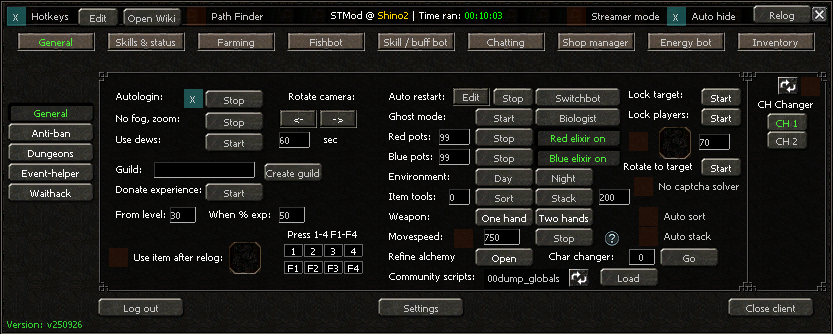
Main STMod window (build v250926)
STMod's window is split into three parts that stay on screen no matter which tab you have open: a **top bar**, the **tab bar** (General, Skills & status, Farming, Fishbot, Skill / buffbot, Chatting, Shop manager, Energy bot, Inventory), and a **bottom bar**. This page covers the parts that are always visible; each tab's own controls are documented on that tab's page.
## Top bar
* **Hotkeys** — Master on/off switch for STMod's hotkey system. When checked, your configured key combinations will trigger their assigned actions.
* **Edit** (next to Hotkeys) — Opens the **Hotkeys manager** window, where you assign key combinations to actions and can **Save**/**Load**/**Restore default** hotkey sets.
* **Open Wiki** — Opens this wiki in your browser.
* **Path Finder** — When enabled, STMod calculates a walkable path around obstacles for movement instead of walking in a straight line. Support depends on the current map; if the map isn't supported this toggle disables/hides itself automatically.
* **STMod @ \** — Shows which server profile is currently loaded.
* **Time ran** — Shows how long the current bot session has been running.
* **Streamer mode** — Hides sensitive on-screen elements and suppresses STMod's debug console output. Turn this on before streaming or recording so account/server details in the console aren't visible to viewers.
* **Auto hide** — Automatically minimizes the STMod window after your saved settings finish loading, so it doesn't stay on top of the game.
* **Relog** — Logs the current character out and back in.
Next to the CH Changer box you may also see a **"No captcha solver"** notice — STMod includes an automatic solver for known in-game captcha/anti-bot challenges; this message means it doesn't recognize the challenge used by your current server.
## Bottom bar
* **Log out** — Logs the character out without closing the game client.
* **Version number** (bottom-left) — The installed STMod build, e.g. `v250926`. Include this when asking for support.
* **Settings** — Opens the [Settings window](/private-servers/settings-window.md).
* **Close client** — Closes the Metin2 game client for this character slot.
{% hint style="info" %}
Looking for Autologin (User/Pass/Pin) or the Restart client on crash setting? Those are configured per client slot in the **STMod Launcher**, not in this in-game window — see [How STMod works](/how-stmod-works.md#running-multiple-clients).
{% endhint %}