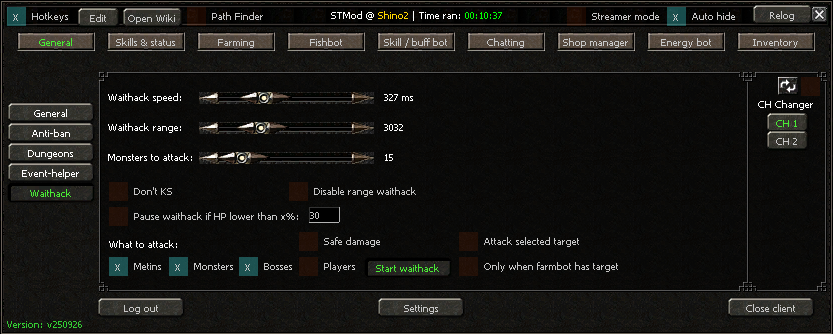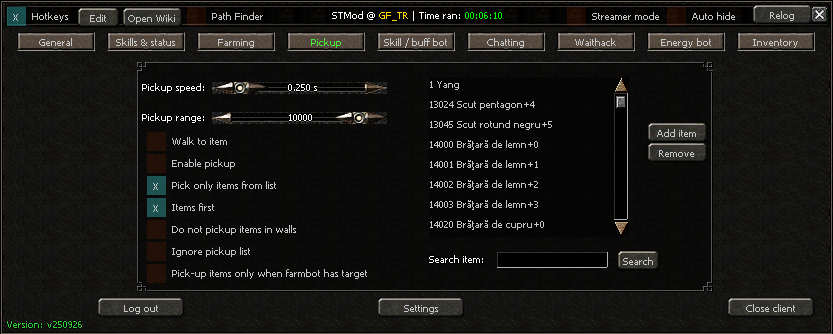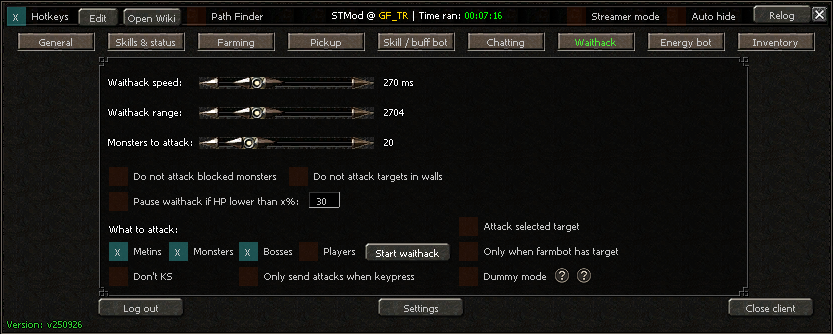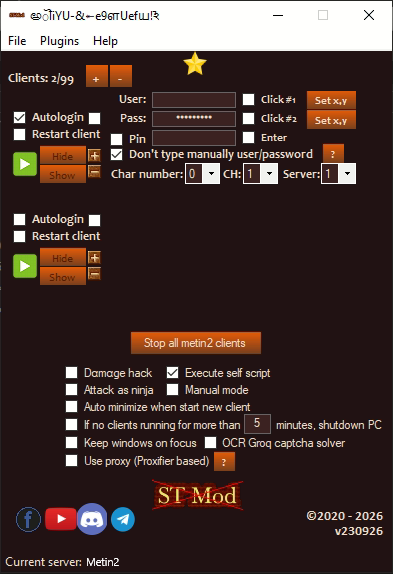
# Welcome to STMod

> STMod is a multi-purpose bot compatible with almost every Metin2 private server as well as official GameForge (GF) servers.
>
> With STMod, you can leave your characters farming non-stop while the bot handles the repetitive work for you.

> Main STMod features:\
> \
> ● Farm bot\
> ● Mining bot\
> ● Fish bot\
> ● Energy bot

{% content-ref url="/pages/JCtiIv0rg3ocEaA4dP17" %}
[Main STMod Window](/private-servers/main-stmod-window)
{% endcontent-ref %}

{% content-ref url="/pages/TSbJvpr669LuWtcbHDwp" %}
[General Tab](/official-servers/general-tab)
{% endcontent-ref %}


# How STMod works (overview)

This page gives a high-level picture of how the pieces fit together — enough to understand what you're running and why certain settings exist, without getting into internal implementation details.

## Starting a client

STMod is not a standalone bot — it runs *inside* your Metin2 game client. The launcher starts the game client for you and attaches STMod's engine to it, which is why STMod's tabs (General, Farming, Fishbot, ...) appear as a panel inside the game window itself rather than as a separate program.

```mermaid
flowchart LR
    A[STMod Launcher] -->|starts| B[Metin2 game client]
    A -->|attaches STMod engine to| B
    B --> C[STMod panel appears inside the game window]
    C --> D[You configure Farming / Fishbot / Chatting / etc.]
```

## Setting up a server

Before you can start anything, STMod needs a **server profile**: the server's name, the game client to start, and whether it's a private or an Official server. You create one the first time you log in, and you can keep as many as you like and switch between them.

{% content-ref url="/pages/sKK5iIqCFpUclg7whVmJ" %}
[Server profiles](/launcher/server-profiles)
{% endcontent-ref %}

## Running multiple clients

The STMod Launcher is where you manage every client you want to run. Each character/account you want to bot at the same time gets its own **client slot**, with its own login, its own restart behavior, and its own STMod settings once it's running.

<figure><img src="https://1662484209-files.gitbook.io/~/files/v0/b/gitbook-x-prod.appspot.com/o/spaces%2FSrVu0j9CYXbvJXRYgHnk%2Fuploads%2Fgit-blob-4391ae4a10e924a2c9ecaa7027afd790097acb41%2Fstmod-launcher.png?alt=media" alt="STMod Launcher window"><figcaption><p>STMod Launcher — each row is one client slot</p></figcaption></figure>

* **Clients: X/99** (with **+**/**−**) — Add or remove client slots, up to 99.
* Per slot: **Autologin**, **Restart client** (auto-restarts that slot if the client crashes — STMod also watches for Runtime errors and restarts even if the window hasn't fully crashed), **User**/**Pass**, **Pin**, **Click #1**/**Click #2** (for servers whose login needs a specific screen click — use **Set x,y** to record the position), **Enter**, **Char number**, **CH**, **Server**.
* The green **▶** button starts that slot's client; **Hide**/**Show** toggles whether its game window is visible.
* **Stop all metin2 clients** — Stops every running slot at once.

### Launcher-wide options

The checkboxes under **Stop all metin2 clients** apply to the whole profile, not to one slot, and are saved with it:

* **Execute self script** — Auto-loads your own Python script into every client you start. STMod creates `Data\Python\self_script.py` for you the first time you tick this; put your code in that file.
* **Manual mode** — STMod doesn't load its panel for you. Instead it tells you to focus the game window and press `Insert`, `TAB` or `CapsLock` to load it yourself. This is forced on for Official servers.
* **Attack as ninja** — Makes your character play the assassin's faster dual-blade attack animations whatever weapon it's actually holding. This is a local animation change only — bow and fishing animations are left alone.
* **Auto minimize when start new client** — Minimises each client to the system tray as it starts.
* **Keep windows on focus** — Keeps bringing the game windows to the front.
* **OCR Groq captcha solver** — Solves server-side captchas using the Groq API. It needs your own (free) Groq API key — see [Plugins → Groq API key](/launcher/launcher-menus#groq-api-key). Not available on Official servers.
* **Use proxy (Proxifier based)** — Routes clients through proxies using Proxifier. STMod offers to open the Proxifier download page if it isn't installed.
* **If no clients running for more than X minutes, shutdown PC** — Shuts the machine down once nothing has been running for that long.

{% hint style="info" %}
These are premium features. **Execute self script**, **Attack as ninja** and **Auto minimize** are greyed out on a free account, and the shutdown timer is switched off; **Keep windows on focus** and the **OCR Groq captcha solver** can be ticked but do nothing without an active subscription.
{% endhint %}

```mermaid
flowchart TB
    L[STMod Launcher] --> S1[Slot 1: own login + settings]
    L --> S2[Slot 2: own login + settings]
    L --> S3[Slot 3: own login + settings]
    S1 --> R1[Auto restart on crash / Runtime error]
    S2 --> R2[Auto restart on crash / Runtime error]
    S3 --> R3[Auto restart on crash / Runtime error]
```

{% hint style="warning" %}
Your User/Pass here are used only to automate the game's own login window on your machine. Never share your STMod license key, your stmod.net login, your `groq_api_key.txt` (used by the [AI auto-reply](/private-servers/chatting) feature), or your game password with anyone claiming to be STMod support.
{% endhint %}

## Activating your license

Your STMod license is tied to your account on [stmod.net](https://stmod.net), not entered directly into the launcher. To activate it:

1. Log into your account on the **stmod.net** dashboard.
2. Go to the **Redeem License Key** section.
3. Enter your key there to redeem it onto your account.

```mermaid
sequenceDiagram
    participant You
    participant Dashboard as stmod.net dashboard
    participant Launcher as STMod Launcher

    You->>Dashboard: Log in
    You->>Dashboard: Redeem License Key
    Dashboard-->>You: Key redeemed, subscription active on your account
    You->>Launcher: Log in / start a client
    Launcher->>Dashboard: Check account status
    alt Subscription active
        Dashboard-->>Launcher: OK
        Launcher-->>You: Client starts
    else No active subscription
        Dashboard-->>Launcher: Rejected
        Launcher-->>You: Shows error, blocks start
    end
```

{% hint style="warning" %}
Only redeem your key on the official stmod.net dashboard — never paste it into a site/Discord bot claiming to "verify" or "unlock" it, that's a common scam.
{% endhint %}

## The rest of the launcher

Everything that isn't a per-client setting lives in the launcher's menu bar — profile switching, the language and theme pickers, and the plugin windows.

{% content-ref url="/pages/q5G2J50TZyMT7elxJ5gx" %}
[Launcher menus](/launcher/launcher-menus)
{% endcontent-ref %}

{% content-ref url="/pages/zTXnS1DusUXLGzo8NjmM" %}
[Theme editor](/launcher/theme-editor)
{% endcontent-ref %}

We keep this page intentionally high-level — the anti-cheat/anti-tamper measures and the exact license-validation protocol aren't documented here on purpose.


# Server profiles

A **server profile** is one saved Metin2 server: its name, which client binary STMod should start, whether it's a private or an Official server, and any command-line argument that client needs. Every profile keeps its own settings, so switching between servers never mixes up your farming lists, hotkeys or antiban rules.

You need at least one profile before you can start a client, so this is the first thing you do after installing STMod.

## The login window

This is the window that opens when you start STMod and log in.

<figure><img src="https://1662484209-files.gitbook.io/~/files/v0/b/gitbook-x-prod.appspot.com/o/spaces%2FSrVu0j9CYXbvJXRYgHnk%2Fuploads%2Fgit-blob-2e024ff69bee66333a0b032c03b7d1e49e53b3dc%2Flogin-window.png?alt=media" alt="STMod login window"><figcaption><p>STMod login window (build v131026)</p></figcaption></figure>

* **Search server** — Type part of a profile name to jump to it in the list below.
* **Profile list** (the dropdown) — Every profile you've created. Picking one loads its saved client path, server type and arguments into the fields underneath.
* **Add new server** — Creates a new profile. See [Creating a profile](#creating-a-profile) below.
* **X** — Deletes the selected profile.
* **Language** — The interface language. The list is built from the language files STMod downloads into `Data\Languages`.
* **Client settings:**
  * **Server name** — The profile's name. It's also used as its folder name on disk.
  * **Client path** — The game client STMod will start and attach to. **`...`** re-opens the file picker if you need to point the profile at a different binary (for example after moving your Metin2 folder).
  * **Special arguments** — For protected clients that refuse to start on their own and tell you to "open the client with the autopatcher". Those clients are started by the patcher with a command-line argument; tick this box, put that argument in the field, and STMod can start the game directly without going through the patcher. The [Argument dumper](/launcher/launcher-menus#argument-dumper) reads the argument off a running client for you, and **`?`** repeats this explanation.
* **Private servers / Official servers** — Which kind of server this profile is. STMod sets this for you when the profile is created, based on the client it finds.
* **Auto start on new launch** — Skips this window next time: STMod goes straight into the launcher with the profile that was last used.
* **Next** — Opens the launcher with the selected profile.

{% hint style="warning" %}
**X** deletes the profile's whole folder under `Data\Servers`, including everything saved in it — its settings, lists and recordings. It asks first, but there's no undo.
{% endhint %}

## Creating a profile

You can start this from either window:

* the login window's **Add new server** button, or
* the launcher's **File → Settings → Switch profile** window, using its **Add new** button.

{% hint style="info" %}
Both buttons open the same **Add new server** window and do the same thing. The only difference is what happens when it finishes: started from **Switch profile**, STMod also switches straight over to the new profile.
{% endhint %}

### 1. Name the profile

<figure><img src="https://1662484209-files.gitbook.io/~/files/v0/b/gitbook-x-prod.appspot.com/o/spaces%2FSrVu0j9CYXbvJXRYgHnk%2Fuploads%2Fgit-blob-85252c81b6b9a10f9f09bd1f712d32aff9aee09f%2Fadd-new-server.png?alt=media" alt="Add new server window"><figcaption><p>Add new server — type the server's name</p></figcaption></figure>

Type the server's name and press **Add new server** (or just hit `Enter`).

The name becomes a folder name, so STMod rejects anything Windows can't store: the characters `\ / : * ? " < > |`, a name ending in a dot, and reserved names like `CON`, `NUL`, `COM1` or `LPT1`.

### 2. Pick the game client

<figure><img src="https://1662484209-files.gitbook.io/~/files/v0/b/gitbook-x-prod.appspot.com/o/spaces%2FSrVu0j9CYXbvJXRYgHnk%2Fuploads%2Fgit-blob-5ee48af91cdff713aa3e8511de8e499e58875e02%2Fselect-client-dialog.png?alt=media" alt="Select the Metin2 client dialog"><figcaption><p>Pick the client itself — not the patcher</p></figcaption></figure>

Browse to your Metin2 folder and select the client binary — usually `metin2client.exe`, `metin2client.bin` or something like `<ServerName>Client.exe`.

{% hint style="warning" %}
Pick the **game client**, not the patcher or launcher. STMod attaches to the game itself; the patcher only downloads files and then starts the game. STMod inspects the file you chose and warns you when it looks like a patcher — it also lists the files in the same folder that look more like the real client.

If you're not sure which file it is: start the game normally through the patcher, open Task Manager (`Ctrl+Shift+Esc`), and the process that appears once the game window opens is your client.
{% endhint %}

### 3. Confirm what STMod detected

Depending on what you selected, you may see one or more of these:

* **"The server name does not match the client you selected"** — STMod compares your profile name against the binary's name and the folder it sits in. It suggests names it worked out from those, and you can either continue with your own name or answer **No** to have the best suggestion filled in for you.
* **"This looks like the patcher"** / **"Not recognised as a Metin2 client"** — Answer **Yes** only if you're certain. Some servers protect their client so it can't be identified, which is a legitimate reason to continue anyway.
* **"A profile named ... already exists"** — Shows what that profile currently points at, and asks whether to re-point it at the client you just picked.
* **"You must select the correct metin2client binary"** — A few servers are known to need one specific binary. STMod checks that list and tells you exactly which file to pick.
* **"You must select metin2client.exe!"** — Shown on GameForge clients, where the binary always has that name.

Once you confirm, the profile is written to disk and selected for you. Nothing is saved until this point, so cancelling the file picker leaves no half-made profile behind.

{% hint style="info" %}
**Private or Official is detected, not asked.** STMod looks for a GameForge-style locale folder in the client's path (`de-DE`, `ro-RO`, `en-GB`, `tr-TR` and so on). If it finds one, the profile is created as an Official-servers profile; otherwise it's a private-server profile.
{% endhint %}

{% hint style="warning" %}
Your Metin2 folder must not contain non-English characters anywhere in its path. STMod checks this and refuses, because the game client will not work correctly from such a path. Move the folder somewhere plain, like `C:\Metin2`.
{% endhint %}

```mermaid
flowchart TB
    A[Add new server] --> B[Type the profile name]
    B --> C{Valid folder name?}
    C -->|No| B
    C -->|Yes| D[Pick the client binary]
    D --> E{Path has special characters?}
    E -->|Yes| F[Refused: move the Metin2 folder]
    E -->|No| G{GameForge locale folder in the path?}
    G -->|Yes| H[Official servers profile]
    G -->|No| I[Inspect the binary: client, patcher or unknown?]
    I --> J[Confirm name / patcher / overwrite]
    J --> K[Private servers profile]
    H --> L[Profile saved and selected]
    K --> L
```

## Switching profiles

Once a client is running you don't have to restart STMod to change servers. In the launcher, open **File → Settings → Switch profile**.

<figure><img src="https://1662484209-files.gitbook.io/~/files/v0/b/gitbook-x-prod.appspot.com/o/spaces%2FSrVu0j9CYXbvJXRYgHnk%2Fuploads%2Fgit-blob-b7e310bbb3e3d268067e3082688e0f8c21fe7b0c%2Fswitch-profile.png?alt=media" alt="Switch profile window"><figcaption><p>Switch profile</p></figcaption></figure>

* **Search** — Type part of a profile name; the list jumps to the first match. Pressing `Enter` switches to it straight away.
* The dropdown lists every profile; it opens on the one you used last.
* **Add new** — Creates a new profile and switches to it (same flow as above).
* **Select** — Switches to the profile shown in the dropdown.

Switching reloads that profile's settings, re-applies the theme, and updates **Current server** in the launcher's status bar. If the profile's client binary is no longer where it was saved, STMod says so and asks you to browse for it, then finishes the switch.

{% hint style="info" %}
Your current settings are saved before the Switch profile window opens, so you won't lose anything by switching.
{% endhint %}

## Where profiles are stored

Each profile is a folder under STMod's `Data\Servers` directory, named after the profile, holding that profile's own `settings.st`. The file next to those folders, `Data\Servers\settings.st`, only remembers which profile was used last.

{% hint style="warning" %}
**File → Settings → Reset settings** deletes STMod's entire `Data` folder — every profile, every saved list, every recording. It is not a "reset this profile" option. See [Launcher menus](/launcher/launcher-menus#settings).
{% endhint %}


# Launcher menus

The menu bar at the top of the STMod Launcher holds everything that isn't a per-client setting: profile management, the language and theme pickers, and the plugin windows.

## File

### Settings

* **Switch profile** — Opens the [Switch profile](/launcher/server-profiles#switching-profiles) window, so you can move to another server without restarting STMod. Your current settings are saved first.
* **Reset settings** — Factory reset. Asks for confirmation, then deletes STMod's whole `Data` folder and closes STMod along with every client it started.
* **Log me out** — Clears your saved stmod.net username, password, **Remember me** and **Auto Login**, ends the session and closes STMod. Use this when you're handing the machine to someone else.

{% hint style="warning" %}
**Reset settings** is not "reset this server". It removes every server profile along with all their farming lists, recordings, routes and hotkeys. Back up your `Data` folder first if there's anything in it you want to keep.
{% endhint %}

### Language

Lists the interface languages STMod has downloaded, with the active one ticked. Picking one re-translates the launcher immediately — no restart needed.

### Server list

Opens [stmod.net/servers.php](https://stmod.net/servers.php) in your browser — the list of servers STMod is known to work on.

### Design

Holds **Theme editor**, which lets you recolour STMod's windows. See [Theme editor](/launcher/theme-editor).

### Exit

Asks for confirmation, then closes STMod and every client it started.

{% hint style="info" %}
The login window has its own, shorter menu: **File** (Settings ▸ Reset settings / Log me out, Design, Servers list, Exit) and **Help** (Changelog, Tutorial). The entries do the same thing as their launcher counterparts.
{% endhint %}

## Plugins

### Argument dumper

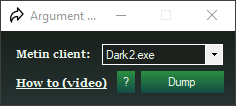
<figure><img src="https://1662484209-files.gitbook.io/~/files/v0/b/gitbook-x-prod.appspot.com/o/spaces%2FSrVu0j9CYXbvJXRYgHnk%2Fuploads%2Fgit-blob-f25c7275d83f34e3391bb7cb7b54e3527d09d57d%2Fargument-dumper.png?alt=media" alt="Argument dumper window"><figcaption><p>Argument dumper</p></figcaption></figure>

Some servers only let their client start with a command-line argument, and STMod has to pass that same argument when it starts the client for you. Rather than hunting for it, start the game once normally and let STMod read it off the running process.

1. Start the game the usual way, through the server's own patcher.
2. Open **Plugins → Argument dumper**.
3. Pick the running game process in **Metin client**. The list only shows processes matching the current profile's client.
4. Press **Dump**.

If an argument is found, STMod offers to configure it for you — answering **Yes** fills in **Special arguments** on the [login window](/launcher/server-profiles#the-login-window), ticks the box and saves it to the profile. If the client doesn't use one, it tells you so.

**How to (video)** and the **`?`** button link to an explanation of what command-line arguments are.

### HWID Switcher

<figure><img src="https://1662484209-files.gitbook.io/~/files/v0/b/gitbook-x-prod.appspot.com/o/spaces%2FSrVu0j9CYXbvJXRYgHnk%2Fuploads%2Fgit-blob-e8b11d57302bf364a4cdcdb4d40d86190446cdbc%2Fhwid-switcher.png?alt=media" alt="HWID Spoofer window"><figcaption><p>HWID Switcher</p></figcaption></figure>

Changes the Windows identifiers a machine reports about itself. Some servers tie a ban to those identifiers rather than to the account.

* The checklist picks which identifiers to change: **Change PC name**, **Change Machine Guid**, **Change Product ID**, **Change Windows Edition**, **Change Machine Id**, **Change User Id**. **Settings: Check all** ticks or unticks them all at once.
* **Change HWID** — Backs up the current values, then applies the changes you ticked.
* **Restore HWID** — Puts back the values saved by the last **Change HWID**.
* **Logs** — Reports what was changed or restored, and anything that failed.

{% hint style="warning" %}
This writes to your Windows registry and affects your whole machine, not just Metin2. **Restore HWID** can only undo what the matching **Change HWID** backed up, so don't run it on a machine you can't afford to have identifiers changed on. If a restore fails, the backup is kept and nothing is deleted — the log says so.
{% endhint %}

{% hint style="info" %}
The HWID Switcher is a premium feature; the menu entry does nothing on a free account.
{% endhint %}

### Groq API key

Shows the status of the **OCR Groq captcha solver** — whether an API key is configured and whether the solver is running — and offers to open the key file so you can paste your own Groq API key in. The solver itself is the **OCR Groq captcha solver** checkbox on the launcher's main window.

{% hint style="warning" %}
Your Groq API key is your own account credential. Keep it to yourself — nobody from STMod will ever ask for it.
{% endhint %}

## Help

* **Get Runtimes** — Installs the Visual C++ runtimes STMod needs, if they're missing.
* **Changelog** — Opens the patch notes for the version you're running.

## Get premium

The rightmost menu entry opens [stmod.net pricing](https://stmod.net/#pricing). It's hidden on most paid plans.

{% hint style="info" %}
License keys are **not** redeemed in the launcher. Log into stmod.net and use the **Redeem License Key** section of the dashboard — see [How STMod works](/how-stmod-works#activating-your-license).
{% endhint %}


# Theme editor

STMod's windows are recoloured from one place: **File → Design → Theme editor**. It's available from both the login window and the launcher.

<figure><img src="https://1662484209-files.gitbook.io/~/files/v0/b/gitbook-x-prod.appspot.com/o/spaces%2FSrVu0j9CYXbvJXRYgHnk%2Fuploads%2Fgit-blob-7388fb546a5e820a2188c757b0cf9dc04bae427c%2Ftheme-editor.png?alt=media" alt="Theme Editor window"><figcaption><p>Theme editor — colour list on the left, live preview on the right</p></figcaption></figure>

## Colours

Each row on the left is one colour in the theme. Click a swatch to open the Windows colour picker and change it; the preview on the right updates as you go.

| Row                                         | What it colours                                            |
| ------------------------------------------- | ---------------------------------------------------------- |
| **Form background**                         | The window surface itself                                  |
| **Panel background**                        | Panels sitting on the window, such as the client-slot area |
| **Button background**                       | Buttons                                                    |
| **Button text**                             | Text on buttons                                            |
| **Label / text color**                      | Plain text                                                 |
| **TextBox background** / **TextBox text**   | Input boxes                                                |
| **Accent / border**                         | Borders, the focus outline, and the checkmark              |
| **CheckBox background** / **CheckBox text** | Checkboxes and their labels                                |
| **GroupBox background** / **GroupBox text** | Framed groups and their titles                             |
| **ComboBox background** / **ComboBox text** | Dropdowns                                                  |

### Gradient stops

The three indented **└ gradient stop** rows (under Form background, Panel background and Button background) turn that colour into a vertical gradient, fading from the base colour to the stop.

* Click a gradient stop to set it. If it's empty, the picker starts from the base colour.
* **Right-click a gradient stop to clear it** — that surface goes back to a flat colour. A cleared stop shows as `none`.

## Preview

The right-hand panel is a mock-up of a real STMod window — a label, two buttons, a text box, a checkbox, a dropdown and a group box — drawn with the colours you've picked. Buttons in the preview react to hover and click, so you can check that your colours still read properly in those states before applying them.

## Bottom bar

* **Theme name** — The name to save under. Characters that aren't allowed in a filename are replaced with `_`.
* **Theme list** (the dropdown) — Every theme you've saved. Picking one loads it straight away.
* **Load** — Loads the theme selected in the dropdown.
* **Save** — Saves the current colours under the name in the box, without applying them.
* **Random** — Generates a random colour set. A quick way to find a starting point.
* **Reset** — Goes back to STMod's built-in dark defaults. This only changes what you're editing — nothing is saved or applied until you press Save or Apply.
* **Apply** — Applies the theme to every STMod window that's currently open, saves it under the name in the box, and makes it the theme STMod loads from then on.
* **Close** — Closes the editor. Anything you haven't applied or saved is discarded.

{% hint style="info" %}
**Apply** also saves. That's deliberate: windows opened later reload the theme by name from disk, so applying without saving would be silently undone the next time a window opened.
{% endhint %}

Themes are stored as `.theme` files in STMod's `Data\Themes` folder, so you can copy one between machines or share it.

{% hint style="warning" %}
**File → Settings → Reset settings** deletes the whole `Data` folder, your saved themes included. Copy any theme you want to keep out of `Data\Themes` first.
{% endhint %}


# Main STMod Window

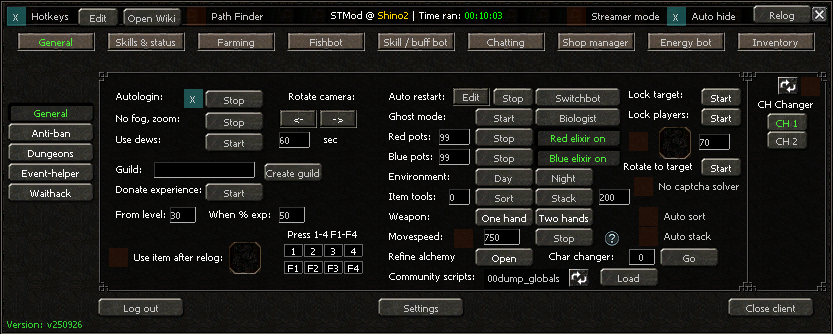
<figure><img src="https://1662484209-files.gitbook.io/~/files/v0/b/gitbook-x-prod.appspot.com/o/spaces%2FSrVu0j9CYXbvJXRYgHnk%2Fuploads%2Fgit-blob-e3c7296b3b38de919b2213d0b0b756318b9e7e53%2Fgeneral-tab-main.png?alt=media" alt="STMod main window showing the top bar, tab list and General tab"><figcaption><p>Main STMod window (build v250926)</p></figcaption></figure>

STMod's window is split into three parts that stay on screen no matter which tab you have open: a **top bar**, the **tab bar** (General, Skills & status, Farming, Fishbot, Skill / buffbot, Chatting, Shop manager, Energy bot, Inventory), and a **bottom bar**. This page covers the parts that are always visible; each tab's own controls are documented on that tab's page.

## Top bar

* **Hotkeys** — Master on/off switch for STMod's hotkey system. When checked, your configured key combinations will trigger their assigned actions.
* **Edit** (next to Hotkeys) — Opens the **Hotkeys manager** window, where you assign key combinations to actions and can **Save**/**Load**/**Restore default** hotkey sets.
* **Open Wiki** — Opens this wiki in your browser.
* **Path Finder** — When enabled, STMod calculates a walkable path around obstacles for movement instead of walking in a straight line. Support depends on the current map; if the map isn't supported this toggle disables/hides itself automatically.
* **STMod @ \<server>** — Shows which server profile is currently loaded.
* **Time ran** — Shows how long the current bot session has been running.
* **Streamer mode** — Hides sensitive on-screen elements and suppresses STMod's debug console output. Turn this on before streaming or recording so account/server details in the console aren't visible to viewers.
* **Auto hide** — Automatically minimizes the STMod window after your saved settings finish loading, so it doesn't stay on top of the game.
* **Relog** — Logs the current character out and back in.

Next to the CH Changer box you may also see a **"No captcha solver"** notice — STMod includes an automatic solver for known in-game captcha/anti-bot challenges; this message means it doesn't recognize the challenge used by your current server.

## Bottom bar

* **Log out** — Logs the character out without closing the game client.
* **Version number** (bottom-left) — The installed STMod build, e.g. `v250926`. Include this when asking for support.
* **Settings** — Opens the [Settings window](/private-servers/settings-window).
* **Close client** — Closes the Metin2 game client for this character slot.

{% hint style="info" %}
Looking for Autologin (User/Pass/Pin) or the Restart client on crash setting? Those are configured per client slot in the **STMod Launcher**, not in this in-game window — see [How STMod works](/how-stmod-works#running-multiple-clients).
{% endhint %}


# General Tab

<figure><img src="https://1662484209-files.gitbook.io/~/files/v0/b/gitbook-x-prod.appspot.com/o/spaces%2FSrVu0j9CYXbvJXRYgHnk%2Fuploads%2Fgit-blob-e3c7296b3b38de919b2213d0b0b756318b9e7e53%2Fgeneral-tab-main.png?alt=media" alt="General tab"><figcaption><p>General tab (build v250926)</p></figcaption></figure>

{% hint style="info" %}
The window chrome around this tab (top bar, tab list, bottom bar) is documented once on the [Main STMod Window](/private-servers/main-stmod-window) page.
{% endhint %}

* **Autologin** — See the **Autologin** section on the [Main STMod Window](/private-servers/main-stmod-window) page for the full setup.
* **No fog / Zoom** — Removes the in-game fog and increases the camera zoom limit.
* **Use dews** — The bot will automatically use all types of damage-boosting items (such as Piercing Strike and Critical Strike) at the specified delay interval.
* **Rotate camera** — The two arrow buttons rotate the camera left/right. Useful for preventing the black-screen issue some servers cause during long sessions.
* **Guild** — Allows you to create a guild remotely without meeting the required level. Note: this may not work on all private servers.
* **Donate experience** — The bot will automatically donate your experience to the guild once you reach **From level** and **When % exp** is at or above the value you set.
* **Use item after relog** — The bot will use the specified item once it has re-logged your character (useful for summoning a pet).
* **Press 1–4 / F1–F4** — The bot acts as a macro, automatically using items assigned to those hotkey slots.
* **Auto restart** — The bot will automatically restart your character upon death. Click **Edit** to open **Auto revive options**:

  <figure><img src="https://1662484209-files.gitbook.io/~/files/v0/b/gitbook-x-prod.appspot.com/o/spaces%2FSrVu0j9CYXbvJXRYgHnk%2Fuploads%2Fgit-blob-3ea95a3736daa62ec5debf3e36318d4f4b019702%2Fauto-restart-options.png?alt=media" alt="Auto revive options window"><figcaption></figcaption></figure>

  * **If character dies X times do** — Triggers the chosen action after your character has died this many times in total.
  * **If character dies X times in Y minutes do** — Triggers the chosen action if deaths happen this often within a rolling time window (better for catching repeated deaths in a short burst).
  * Action to take: **Restart client**, **Revive in town**, **Change CH**, **Stop bot**, or **End client**.
  * **Restart check delay (sec)** — How often the bot checks your character's state for this rule.
  * **Randomize** — Adds slight random variation to the check delay.
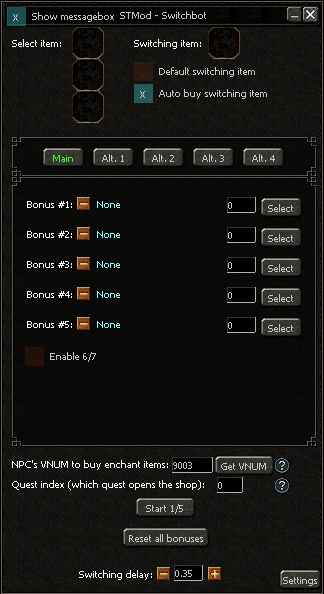
* **Switchbot:**

  <figure><img src="https://1662484209-files.gitbook.io/~/files/v0/b/gitbook-x-prod.appspot.com/o/spaces%2FSrVu0j9CYXbvJXRYgHnk%2Fuploads%2Fgit-blob-13501448037b34d19297110e3f973a66137c9908%2Fswitchbot-window.png?alt=media" alt="Switchbot window"><figcaption></figcaption></figure>

  Automatically re-rolls (switches) an item's random bonuses until it matches the profile you configure.

  * **Select item / Switching item** — Place the item to switch in the first slot; the item that performs the switch goes in the second slot.
  * **Default switching item / Auto buy switching item** — Choose whether to use the item already in the slot, or have the bot automatically buy more switching items as needed.
  * **Main / Alt. 1–4** — Up to five separate bonus profiles you can switch between.
  * **Bonus #1–#5** — For each bonus slot, select the target bonus and its minimum value using **Select**.
  * **Enable 6/7** — Also check bonus slots 6 and 7, on servers that support that many item bonuses.
  * **NPC's VNUM to buy enchant items** — VNUM of the NPC to auto-buy switching items from; use **Get VNUM** to detect it.
  * **Quest index** — The quest index that opens that NPC's shop, if required.
  * **Switching delay** — Delay, in seconds, between each switch attempt.
  * **Start** / **Reset all bonuses** — Starts the switchbot, or clears your configured bonus targets.
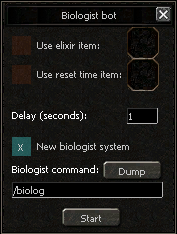
* **Biologist bot:**

  <figure><img src="https://1662484209-files.gitbook.io/~/files/v0/b/gitbook-x-prod.appspot.com/o/spaces%2FSrVu0j9CYXbvJXRYgHnk%2Fuploads%2Fgit-blob-7614e72008bee3954005e162dde0992bbacd81f9%2Fbiologist-bot-window.png?alt=media" alt="Biologist bot window"><figcaption></figcaption></figure>

  * **Use elixir item** — The bot will use the elixir item that improves the biologist success rate (you must have it in your inventory).
  * **Use reset time item** — If the server provides such an item, the bot will use it to reset the biologist cooldown.
  * **Delay (seconds)** — How often the bot checks/attempts a biologist action.
  * **New biologist system** — Enable this on servers using a newer biologist UI/flow.
  * **Biologist command** — The chat command STMod sends to trigger the biologist action (default `/biolog`). Use **Dump** if your server uses a different command and you need to detect it.
* **Ghost mode** — Allows your character to move while dead. Note: this may not work on all servers.
* **Red / blue pots** — The bot will automatically use red or blue potions when your HP or MP drops below the specified percentage.
* **Red / blue elixir** — The bot will automatically use a red or blue elixir once the previous one expires.
* **Environment** — Automatically sets the game mode to Day or Night.
* **Item tools:**
  * **Sort** — Sorts all items in your inventory.
  * **Stack** — Stacks all items in your inventory up to the specified stack amount.
* **Weapon** — Sets how your character holds their weapon (one hand / two hands).
* **Refine alchemy** — The bot will automatically refine all available alchemy items.
* **Move speed** — Increases your movement speed. Use the `SHIFT + W/A/S/D` key combination to move at the configured speed.
* **Char changer** — Switches your currently loaded character to the slot number you enter, without restarting the client. Click **Go** to apply.
* **Community scripts** — Allows you to run your own Python scripts. Place your scripts in `STMod → Resources → Python → Community`, then select the script and click **Load**.
* **Lock target** — Locks the selected target to your character. Useful in PvP when using skills only. Can also be toggled with the `TAB` hotkey.
* **Lock players** — Visually pins all nearby players in place (visible only to you). Useful in PvP when using skills only.

  <div align="left"><figure><img src="https://app.gitbook.com/o/SrVu0j9CYXbvJXRYgHnk/~/files/5RnItAY9eHnw72nNITpx" alt=""><figcaption><p>This function will use the item you set once your HP drops below the specified percentage.</p></figcaption></figure></div>
* **Auto sort** — The bot will continuously sort your inventory every 5 seconds.
* **Auto stack** — The bot will continuously stack your items every 5 seconds.

  <div align="left"><figure><img src="https://app.gitbook.com/o/SrVu0j9CYXbvJXRYgHnk/~/files/8XuHfiCfptBnOzzdBS0d" alt=""><figcaption><p>This box uses the in-game Channel Changer.</p></figcaption></figure></div>

**`General tab -> Antiban`**

<figure><img src="https://1662484209-files.gitbook.io/~/files/v0/b/gitbook-x-prod.appspot.com/o/spaces%2FSrVu0j9CYXbvJXRYgHnk%2Fuploads%2Fgit-blob-feab27a1617153b553546701ffde407b62c721a0%2Fantiban-tab.png?alt=media" alt="Antiban sub-tab"><figcaption></figcaption></figure>

* **Player detector:**
  * **Write in chat** — Writes the names of all detected nearby players in the chat.
  * **Notify** — Shows a Windows notification when a player is detected.
  * **Logout** — The bot will log you out.
  * **Quit** — Closes the game client.
  * **Play beep** — The bot will play a repeating beep sound.
* **GM Detector:**
  * **Write in chat** — Writes the names of all detected GMs in the chat.
  * **Notify** — Shows a Windows notification when a GM is detected.
  * **Logout** — The bot will log you out.
  * **Quit** — Closes the game client.
  * **Quit all clients** — Closes all active game clients.
  * **Play beep** — The bot will play a repeating beep sound.
* **PM Detector:**
  * **Quit game after X PM(s) received from GM** — Closes the client after the specified number of GM private messages.
  * **Play beep sound if PM received** — Plays a beep when you receive a PM from any player.
  * **Windows Notify on PM** — Shows a Windows notification when a PM is received.
* **Players whitelist** — Players added here will not trigger the detectors above. Use the **+**/**−** controls to add or remove names, and **Delete list** to clear it.
* **Quit bot after X minutes** / **Stop bot after X minutes** — Closes the client, or just stops all botting functions, after the specified time.
* **Relog each X minutes** — Forces a relog on a fixed interval regardless of other triggers.
* **Wait X minutes before logging in again** — If the bot has logged you out and **Autologin** is enabled, the bot waits this long before logging back in.
* **Stop / Quit bot after reaching level** — Automatically stops or closes the bot once your character reaches the configured level.
* **Quit bot if logged out for X minutes** — Closes the client if the character stays logged out longer than this.
* **Panic mode if any player online** — Edit a stricter response that triggers the moment *any* player (not just nearby ones) is online on the server.

> **Notice:** Make sure you click **Start antiban** for these functions to become active.

**`General tab -> Dungeons`**

<figure><img src="https://1662484209-files.gitbook.io/~/files/v0/b/gitbook-x-prod.appspot.com/o/spaces%2FSrVu0j9CYXbvJXRYgHnk%2Fuploads%2Fgit-blob-a85d44e395ddedeadaeb95c1cdd0648614ac1f53%2Fdungeons-tab.png?alt=media" alt="Dungeons sub-tab"><figcaption></figcaption></figure>

* **NPC vnum to interact with** — The VNUM of the NPC that enters you into the dungeon. Use **Get VNUM** to detect it, and the **+**/**−** buttons to keep a list of several NPCs.
* **Delay (seconds)** — How long the bot waits between checks for the NPC's presence.
* **Click quest with index** — When enabled, the bot clicks the quest dialogue at the given index after interacting with the NPC (some dungeons require a quest choice rather than a plain click).
* **Drag item ... to NPC** — Up to three item slots the bot can hand to the NPC (e.g. entry tickets), each targeting the NPC VNUM you set next to it.
* **Go to NPC** — Movement method used to reach the NPC (Walking / Hybrid / Teleporting).
* **Start** — Starts the dungeon-entry routine.

## Other General sub-tabs

The remaining entries in the left-hand sub-menu have their own pages:

* [Waithack](/private-servers/waithack)
* [Event-helper](/private-servers/event-helper)
* [Recorder](/private-servers/recorder)


# Skills & Status

<figure><img src="https://1662484209-files.gitbook.io/~/files/v0/b/gitbook-x-prod.appspot.com/o/spaces%2FSrVu0j9CYXbvJXRYgHnk%2Fuploads%2Fgit-blob-39f11da0532fd4906210a73727ffa1a257be9156%2Fskills-and-status-tab.png?alt=media" alt="Skills &#x26; Status tab"><figcaption><p>Skills &#x26; Status tab (build v250926)</p></figcaption></figure>

## Item Configuration

Use the following fields to configure the items the bot will use for skill and status management:

* **Book** — Set the book item the bot will use to increase your skill level. Click **Read books** to start.
* **Exorcism** — Set the exorcism item.
* **Hermit** — Set the Hermit's Advice item.
* **Zen** — Set the Zen Beans item.
* **SS** — Set the Soul Stone item. Click **Read SS** to start.
* **Skill** — Set the skill index for the Soul Stone bot reader.
* **Confirm string** — If your server requires a confirmation dialog when using items, set the confirmation string here (e.g. `Antrena`).

***

## Add Status

These controls let you automatically distribute status points (VIT, INT, STR, DEX).

* **VIT** — The bot will continuously add VIT points every 10 seconds.
* **VIT +5** — Instantly adds 5 VIT points.
* **INT** — The bot will continuously add INT points every 10 seconds.
* **INT +5** — Instantly adds 5 INT points.
* **STR** — The bot will continuously add STR points every 10 seconds.
* **STR +5** — Instantly adds 5 STR points.
* **DEX** — The bot will continuously add DEX points every 10 seconds.
* **DEX +5** — Instantly adds 5 DEX points.

***

## Upgrade Skills

These controls let you automatically level up your character's skills (slots 1–6).

* **Plus skill 1** — The bot will continuously add points to skill slot 1 every 10 seconds.
* **Skill 1 +5** — Instantly adds 5 points to skill slot 1.
* **Plus skill 2** — The bot will continuously add points to skill slot 2 every 10 seconds.
* **Skill 2 +5** — Instantly adds 5 points to skill slot 2.
* **Plus skill 3** — The bot will continuously add points to skill slot 3 every 10 seconds.
* **Skill 3 +5** — Instantly adds 5 points to skill slot 3.
* **Plus skill 4** — The bot will continuously add points to skill slot 4 every 10 seconds.
* **Skill 4 +5** — Instantly adds 5 points to skill slot 4.
* **Plus skill 5** — The bot will continuously add points to skill slot 5 every 10 seconds.
* **Skill 5 +5** — Instantly adds 5 points to skill slot 5.
* **Plus skill 6** — The bot will continuously add points to skill slot 6 every 10 seconds.
* **Skill 6 +5** — Instantly adds 5 points to skill slot 6.


# Farming

<figure><img src="https://1662484209-files.gitbook.io/~/files/v0/b/gitbook-x-prod.appspot.com/o/spaces%2FSrVu0j9CYXbvJXRYgHnk%2Fuploads%2Fgit-blob-cbc38c4208d7754ef44929cc169e2b810128c554%2Ffarming-tab-main.png?alt=media" alt="Farming tab"><figcaption><p>Farming tab (build v250926)</p></figcaption></figure>

* **Manual VID Range** — Set the VID range manually (uncheck the box to set it automatically; recommended for longer farming sessions).\
  **Lower VID Range** (max 100) — Detects nearby entities faster.\
  **Higher VID Range** (max 9999) — Detects all entities around you, but may take a few seconds to find them all.
* **Classic start button** — Check this box if the green play button is not appearing.
* **Priority** — Select which category of entities the bot should prioritize (Metins first / Bosses first).
* **Wait x sec.** — How many seconds the bot should wait before moving to the next target.
* **Route steps wait** — How many seconds the bot should wait before moving to the next step in a route.
* **Go to next target immediately** — Enable this only if your server causes the bot to continue attacking an entity for a few seconds after it has already been killed.
* **What to farm** — Select what you want the bot to farm:\
  \
  **Metins:** The bot will farm all Metins near you.\
  **`-`** button — Clears the existing ignore Metin list.\
  **`+`** button — Adds the selected Metin to the ignore list.\
  \
  **Bosses:** The bot will farm all Bosses near you.\
  **`-`** button — Clears the existing custom Boss list.\
  **`+`** button — Adds the selected target to the custom Boss list.\
  \
  **Monsters:** The bot will farm all Monsters near you.\
  **Ore:** The bot will farm all Ores near you.

<figure><img src="https://app.gitbook.com/o/SrVu0j9CYXbvJXRYgHnk/~/files/Tw38w0h7Sc3cGyTks9Mi" alt=""><figcaption><p><br><strong><code>Mine nearest ore — The bot will focus on the closest ore to you first.</code></strong><br><strong><code>What to mine — The bot will mine every ore it finds near you.</code></strong><br><strong><code>Not auto pickaxe — Disable this if the bot should not automatically equip a pickaxe before mining.</code></strong><br><strong><code>Time mining ore — How many seconds the bot should mine each ore at a time (default: 30 seconds).</code></strong></p></figcaption></figure>

* **Metin / Boss detector:**

<figure><img src="https://app.gitbook.com/o/SrVu0j9CYXbvJXRYgHnk/~/files/RumLICxv6aCM6gLkloyt" alt=""><figcaption><p><br><strong><code>Detect metins — The bot will detect all Metins around you.</code></strong><br><strong><code>Detect bosses — The bot will detect the default bosses from the game.</code></strong><br><strong><code>Custom bosses — The bot will detect bosses you have flagged manually (to flag a custom boss, right-click it and select 'Add boss').</code></strong><br><strong><code>Rotate to target — The bot will rotate your character to face the detected entity (Metin/Boss).</code></strong></p></figcaption></figure>

* **How to move** — Select which movement method the bot will use:\
  \
  **Walking**\
  **Hybrid** (recommended — your character will not get stuck, and other players will see you moving normally)\
  **Teleporting**
* **Attack on foot** — Forces the bot to stay on foot (dismounted) while attacking, even if **Use horse / use mount** is enabled for travel.
* **Farm in range** — The bot will farm within the specified range.
* **Farm by route** — The bot will follow the route you have created when no entities are found nearby.
* **Fixed range** — The bot will stay within the specified range and will not exceed it.\
  The checkbox next to it — If checked (only applies to "Farm in range"), the bot will return to the initial farming position when no entities are found.
* **Unstuck character** — Recommended when using Walking as the movement method. When enabled, the bot monitors whether your character is stuck and automatically frees it if needed.\
  \
  **Use horse skill** — The bot will use this horse skill to help get unstuck:

<figure><img src="https://app.gitbook.com/o/SrVu0j9CYXbvJXRYgHnk/~/files/d6a5wtiJ5aFRwGen4b3o" alt=""><figcaption></figcaption></figure>

* **Stop if player detected** — The bot will stop farming if any player is detected nearby (excluding players on the Anti-ban whitelist).
* **Do not KS** — The bot will not attack entities that are already being attacked by another player.
* **Relog / TP if HP lower than** — Choose whether the bot relogs or teleports your character away once your HP drops below the percentage you set.\
  **TP hybrid if HP lower than** — A second, usually lower, HP percentage at which the bot teleports even if Relog is the selected action — a faster escape than a full relog.
* **Wait for HP %** — After an HP-triggered escape, the bot waits until your HP recovers to at least this percentage before resuming attacks.
* **Use horse / use mount** — When enabled, the bot will continuously check whether you are mounted. If not, it will summon and mount your horse automatically.\
  **Pause attack** — Pauses attacking while the bot is busy mounting/dismounting, to avoid wasted hits.
* **No distance check (WH)** — Skips the usual distance check against the Waithack range, for setups running [Waithack](/private-servers/waithack) alongside Farming.
* **Skip metin if still attacking after x seconds** — The bot will move on to the next target if the current Metin has not been killed within the specified number of seconds.
* **Farm settings → Options** — Opens an additional settings window with further tuning options for the farm routine.
* **CH Changer:**

<figure><img src="https://app.gitbook.com/o/SrVu0j9CYXbvJXRYgHnk/~/files/TIyOAFM8drp9ZYEYdyp7" alt=""><figcaption><p><br><strong><code>Change CH after route is finished — The bot will switch to the next channel after completing the route and finding nothing to attack.</code></strong><br><strong><code>Change CH if nothing to attack — The bot will switch to the next channel if there is nothing to attack.</code></strong><br><strong><code>Relog if nothing to attack — The bot will relog your character if there is nothing to attack.</code></strong><br></p></figcaption></figure>

* **One hit** — The bot will only hit each enemy once, preventing you from pushing nearby mobs away.
* **Freeze location** — The bot will lock your current position; your character will not be able to move from that spot.
* **Attack** — Choose an attack mode (default **Normal**) and click **Start** for the bot to continuously attack, as if holding the Space key.\
  **Don't attack** — Detects and targets entities without ever attacking them (useful for testing detection/pathing).\
  **Attack once** — Attacks a target a single time instead of continuously.
* **Item user:**

<figure><img src="https://app.gitbook.com/o/SrVu0j9CYXbvJXRYgHnk/~/files/KmtR4UE4MsvZqvXhWRI3" alt=""><figcaption></figcaption></figure>

* **Map teleport:**

<figure><img src="https://1662484209-files.gitbook.io/~/files/v0/b/gitbook-x-prod.appspot.com/o/spaces%2FSrVu0j9CYXbvJXRYgHnk%2Fuploads%2Fgit-blob-3978dafe9b07f4731b5546d85e4392e68491729a%2Fmap-teleport-window.png?alt=media" alt="Map teleport window"><figcaption><p>Map teleport window — click a point on the map (or a detected Metin/boss marker) to teleport there</p></figcaption></figure>

* **How to move** — Movement method used for the teleport (Walking / Hybrid / Teleporting).
* **Auto refresh map** — Keeps redrawing detected Metins/bosses on the map as they update.
* **Radar** — Shows a compact radar-style view instead of the full map.
* **Record route** — Records your movement as a route STMod can replay with **Farm by route**.
* **Use capes each x seconds** — The bot will use the Capes item to attract nearby monsters.\
  **Capes ID** — The VNUM of the Capes item to use; click **Read ID** to detect it automatically from your inventory.<br>

<figure><img src="https://app.gitbook.com/o/SrVu0j9CYXbvJXRYgHnk/~/files/ejXD8QIx0W6FwC4cT5zC" alt=""><figcaption><p><strong><code>When this box is checked, the bot will teleport your character in a cross pattern to attract more monsters.</code></strong></p></figcaption></figure>

* **Hotkey teleport** — Allows you to teleport by pressing the arrow keys.

<figure><img src="https://app.gitbook.com/o/SrVu0j9CYXbvJXRYgHnk/~/files/y2TfdtPPwhommMt3NiCD" alt=""><figcaption><p><strong><code>This value sets the distance for each teleport step.</code></strong></p></figcaption></figure>

* **Moblock** — Pulls all nearby mobs to your position; the button shows **MobLock ON/OFF** to indicate its current state. Note: this effect is only visible to you. Depending on your server's settings, you may not be able to attack these mobs with regular hits, but skills may still work.

**`Farming tab -> Pickup`**

<figure><img src="https://1662484209-files.gitbook.io/~/files/v0/b/gitbook-x-prod.appspot.com/o/spaces%2FSrVu0j9CYXbvJXRYgHnk%2Fuploads%2Fgit-blob-4a0e31f6c167136d66d7ea22d4c902a4347c5dbe%2Ffarming-pickup-tab.png?alt=media" alt="Pickup sub-tab"><figcaption></figcaption></figure>

* **Items to pick (VIDs)** — Add ground items to this list by clicking the **Add item** button. Use **Add item (search)** to find an item by name instead of by VID.
* **Item filter: exact item match (new)** — When enabled, the list only matches items whose name/data matches exactly, avoiding false positives between similarly-named items.
* **Global list (all servers)** — Use one shared pickup list across every server profile instead of a per-server list.
* **Exclude items in list (pick rest)** — Inverts the list: STMod picks up everything *except* the items you've added.
* **Filter pickup** — When enabled, the bot will only pick up items that are in the VIDs list.
* **Enable pickup** — Starts the pickup bot.\
  **Pickup only after breaking an entity** — Prevents the pickup bot from spamming; items will only be picked up after you kill an enemy.
* **Pickup speed** — Set the desired pickup speed, in seconds between pickups.\
  **Randomize pickup speed** — Adds small random variation to the pickup speed instead of a fixed interval.
* **Pick all items at once** — The bot will attempt to pick up all nearby items at once. Note: this may not work on all servers.
* **Pick-up items only when farmbot has target** — Only picks up items while the Farming bot is actively engaged with a target, instead of continuously.
* **Pick-up yang only** — Only picks up yang, ignoring items (must be used together with **Filter pickup**).
* **Pickup range** — Sets the radius around your character in which the bot will pick up items.
* **Walk to item** — Lets the bot walk to items that are outside its normal pickup range instead of skipping them.
* **Prioritize pickup (pause farm/waithack)** — Temporarily pauses Farming/Waithack while picking up items, so movement doesn't interrupt the pickup.

**`Farming tab -> Levelbot`**

The third sub-tab farms a list of saved map areas one after another, instead of a single spot or a route. See the dedicated [Levelbot](/private-servers/levelbot) page.


# Levelbot

<figure><img src="https://1662484209-files.gitbook.io/~/files/v0/b/gitbook-x-prod.appspot.com/o/spaces%2FSrVu0j9CYXbvJXRYgHnk%2Fuploads%2Fgit-blob-0c8e328d24d03e5f414982536032f4dd89f7124e%2Flevelbot-tab.png?alt=media" alt="Levelbot sub-tab"><figcaption><p>Levelbot (build v131026)</p></figcaption></figure>

The **Levelbot** is a sub-tab of **Farming** that farms a list of map areas one after another.

It is a scheduler sitting on top of the normal farmbot — targeting, pickup, movement and CH changing are all still the existing farmbot. You start the farmbot as usual; the Levelbot only decides *where* it farms.

## Area mode

* **Single Area** — Keeps the bot on one spot.
* **Multiple Areas** — Walks the saved area list: it farms area 1, then moves to area 2, and so on, using the conditions on the right to decide when to move on.

The two are mutually exclusive — ticking one unticks the other. Ticking either one also:

* turns **Farm by route** off, because the route and the area list would both try to steer your character at the same time, and
* switches **Fixed range** and **go to initial position** on, so the bot stays inside the circle it is working in.

{% hint style="info" %}
Only **Multiple Areas** actually cycles through areas. **Single Area** is effectively a preset: it pins the farmbot to the spot you started on and leaves it there. Area cycling also stops if the list is empty or Farm by route gets switched back on.
{% endhint %}

## Building an area list

* **Create new Area** — Saves the spot you are standing on, together with the current farming range. It reads your character position, so it works on clients that have no map window. New areas are always added at the end.
* **Remove last** — Drops the area added most recently.
* **Remove selected** — Drops the one picked in the **Areas** box.

### The Areas box

Lists the areas of the list you are editing, in the order the bot visits them. Each line reads like `1) 436 712 r20`:

* the position in the list,
* the **x** and **y** the area is centred on,
* `r` followed by its range.

A `>` marks the area the bot is working on right now.

{% hint style="info" %}
The numbers shown here are scaled for readability — x and y are the world coordinates divided by 100, and the range is shown in the same units as the farming range field. The saved file stores the raw values instead, so the numbers in the file are much larger than the ones in this box.
{% endhint %}

### Saving, loading and hand-editing

* **Save** — Writes the current areas under the name typed in the box.
* **Load** — Brings a saved list back and makes it the one the bot uses.
* **Notepad** — Opens the selected list in a text editor so you can fine-tune the numbers by hand.
* **(?)** next to the list box — Reloads the names, after you add or delete files yourself.
* **Current Area List** — Shows which list is loaded.

Lists are plain text files in `STMod folder → Data → LevelAreas`, saved as `<name>.txt`, one area per line as `x y range`. The order of the lines is the order the areas are visited, so reordering means editing the file — **Create new Area** always appends. If a line has no range, or an invalid one, the current farming range is used for it.

### Edit Levelarea

Draws every area of the loaded list on the map window as a dot, with the area currently being farmed in a different colour. **Clicking a dot removes that area.**

On clients that have no map window the dots can't be drawn — use the **Areas** box and **Remove selected** instead.

### Set: Waithack Range = Area Range

Every area carries its own range, taken from the farming range at the moment you created it. With this ticked, the waithack range is set to match the range of each area as the bot enters it, so [Waithack](/private-servers/waithack) covers exactly the area being farmed instead of a fixed radius. It does nothing on clients without waithack.

## Go to next Area if

These decide when the bot gives up on the area it is in and moves to the next one. Tick as many as you like — **the first one that applies wins**.

* **After x Seconds** — Leave once the bot has been in the area that long, whether or not there is still something to kill. Counted from the moment it arrives, not from when the area was picked.
* **Less than x Monsters** — Leave once fewer than that many targets are left inside the area.
* **Health below %** — Leave when your health drops under that share, to walk away from a spot that is hurting you.
* **Mark area unsafe in low profile mode** — Low profile mode is what STMod switches to when it spots a player it was told to watch for, and what the panic button puts you in. With this ticked, the area the bot was in when that happened is remembered as unsafe and the bot moves on instead of staying where it was seen.
  * **Do not visit for x Seconds** — How long an unsafe area is skipped for. This sub-option is what actually blacklists the area: with it unticked the bot still moves on when low profile hits, but the area is not remembered as unsafe.
  * When every area is unsafe the bot keeps going anyway rather than standing still.
* **Change CH after last Area** — Changes channel once the bot wraps past the end of the list, using the channel settings from the Safety tab.

### When each check runs

The checks are not all evaluated at the same point:

* The **unsafe / low profile** check runs first, and applies even while the bot is still travelling to the area.
* If the bot cannot reach an area within **90 seconds** it gives up on it and moves to the next one.
* The remaining conditions only start once the bot has actually arrived inside the area.
* While the pickup bot still has items waiting to be collected, the checks pause.
* **After x Seconds** is checked as soon as the bot arrives, while **Less than x Monsters** and **Health below %** wait for a short settling period (about 4 seconds) after arrival first.

## What happens when the bot enters an area

The farming centre moves to that area's coordinates, the farming range field is overwritten with the area's own range, the waithack range is synced if **Set: Waithack Range = Area Range** is on, and **Fixed range** / **go to initial position** are re-applied.

When the farmbot starts, the Levelbot jumps to the area **closest to where you are standing**, not to the first one in the list. The status line shows `Area n/total` while it is running, or `Areas: n` when it is idle.


# Fishbot

<figure><img src="https://1662484209-files.gitbook.io/~/files/v0/b/gitbook-x-prod.appspot.com/o/spaces%2FSrVu0j9CYXbvJXRYgHnk%2Fuploads%2Fgit-blob-b85d3ce5ae031718b65473c24fb39fb0b643226d%2Ffishbot-tab-main.png?alt=media" alt="Fishbot tab"><figcaption><p>Fishbot tab (build v250926)</p></figcaption></figure>

* **Fish delay** — Sets how many seconds the bot waits after the fishing bubble appears before reacting.
* **Bot delay** — Sets the bot's reaction time. Best set to `0.01`. On servers using the new fishing system, this value must be greater than `1` second.
* **Open clams** — The bot will automatically open clams found in your inventory.
* **Sell minnows** — The bot will automatically sell minnows from your inventory.
* **Switch armor** — The bot will remove and re-equip your armor, which cancels the fishing animation.
* **Upgrade rod** — The bot will automatically upgrade your fishing rod when an upgrade is available.
* **Rotate character** — Periodically rotates your character while fishing, matching normal player behavior.
* **Stop if player detected** — The bot will stop fishing if any player is detected nearby. Players on the Anti-ban whitelist are excluded.
* **Cancel animation** — The bot cancels the fishing animation using your horse. By default, it uses your regular horse. If you do not have a regular horse, place your mount item in the designated slot.
* **Go to fisherman if not nearby** — The bot will walk to the fisherman to buy bait or sell items, but only if you are not already close enough to open their shop.
* **Disable quests** — Quest dialogues will no longer appear when talking to the Fisherman.
* **Fisherman VNUM** — Sets the VNUM of the fisherman NPC. The default value is `9009`. If the bot does not detect the fisherman automatically, right-click on the fisherman in-game and select **Get VNUM** to retrieve the correct value.
* **Shop index** — Specifies which shop tab to open when interacting with the fisherman.

<figure><img src="https://app.gitbook.com/o/SrVu0j9CYXbvJXRYgHnk/~/files/k2SzFYxfjz8zJX74dfV3" alt=""><figcaption><p>By default, opening the shop requires shop index 0.</p></figcaption></figure>

* **Start/Stop Fishbot** — Button to start or stop the fishbot.
* **Fix pulling rod** — Enable this option only if the fishbot starts but the rod is not being pulled. Some servers require this setting.
* **Buy bait** (with shop index) — The bot will automatically buy bait if none is found in your inventory. The shop index works the same way as described above.
* **Buy bait from quest** — The bot will buy bait through the quest dialogue. Some servers require you to interact with the fisherman to purchase bait rather than buying directly from the shop.
* **Select bait** — Choose which bait the bot should use:
  * Small fish
  * Worms
  * Paste
  * Custom bait: check **Other bait** and place your bait item in the designated slot.
* **Grill Fish** — Automatically grills/cooks caught fish that support it, instead of leaving them raw in your inventory.
* **Pause fishbot** — Pauses fishing for the configured **hours : minutes** once triggered, instead of stopping it outright. Useful for scheduled breaks.

***

**`Fishbot tab → Drop/Kill Fish`**

<figure><img src="https://1662484209-files.gitbook.io/~/files/v0/b/gitbook-x-prod.appspot.com/o/spaces%2FSrVu0j9CYXbvJXRYgHnk%2Fuploads%2Fgit-blob-3b28416481a56db2a7eaf00311180ed427b85834%2Ffishbot-drop-kill-fish.png?alt=media" alt="Drop/Kill Fish sub-tab"><figcaption></figcaption></figure>

* **All fish items** have the following options:
  * Kill fish
  * Sell item (sells the dead fish only)
* **Other items** (such as Bleach, Lucy's Ring, etc.) have the following options:
  * Drop
  * Sell item


# Skill / buffbot

<figure><img src="https://1662484209-files.gitbook.io/~/files/v0/b/gitbook-x-prod.appspot.com/o/spaces%2FSrVu0j9CYXbvJXRYgHnk%2Fuploads%2Fgit-blob-044185b3844b18bf5252b4413bd179651ea453cb%2Fskill-buffbot-tab.png?alt=media" alt="Skill / buffbot tab"><figcaption><p>Skill / buffbot tab (build v250926)</p></figcaption></figure>

## Buffbot

The Buffbot automatically applies selected skills to a specified target at a set interval.

* **Target name** — Select the target that will receive your buffs, or click **Get VID** to grab it from your current selection in-game.
* **Skills** — Select the skills you want to cast on the target.
* **Delay** — Set how frequently (in seconds) the bot should re-apply buffs to the target.
* **Follow target** — When enabled, the bot will follow the specified target to stay in range.
* **Go to entity** — Select the movement method used to reach the target:
  * **Walking** — Moves normally on foot.
  * **Hybrid** *(recommended)* — Combines movement modes to avoid getting stuck, while appearing to other players as if you are walking normally.
  * **Teleporting** — Instantly moves to the target's position.
* **Reach target** — Choose how close the bot needs to get before casting (e.g. **Close to target**), instead of always closing to melee range.

## Skillbot

The Skillbot automatically activates selected skills based on a configurable cooldown check.

* **Skip skill animation** — When enabled, skill animations are skipped during use, speeding up skill activation.
* **Skills** — Select the skills you want the bot to use automatically.
* **Strong body** — When enabled, the bot will activate the Strong Body skill regardless of your character's race. This is useful for preventing knockback from other players or mobs. Note: this feature may not work on all servers.
* **Delay** — Set how frequently (in seconds) the bot should check whether a skill is ready to be used.
* **Only use when farmbot has target** — Restricts the Skillbot to firing only while the [Farming](/private-servers/farming) bot is actively engaged with a target, instead of on a free-running timer.
* **Use all skills at once** — Casts every selected skill together on cooldown instead of cycling through them one at a time.


# Chatting

<figure><img src="https://1662484209-files.gitbook.io/~/files/v0/b/gitbook-x-prod.appspot.com/o/spaces%2FSrVu0j9CYXbvJXRYgHnk%2Fuploads%2Fgit-blob-536582beec78d1e6212172722e38ef4df3b3a76a%2Fchatting-tab-main.png?alt=media" alt="Chatting tab"><figcaption><p>Chatting tab (build v250926)</p></figcaption></figure>

The **Chatting** tab lets you automatically send repeated messages in the game chat. Configure the following options:

* **Text field** — Type the message you want to spam.
* **Delete text** — Clear the current text from the input field.
* **Delay** — Set how frequently (in seconds) the message is sent.
* **Color** — Choose the color your message will appear in.
* **Type** — Select the chat channel to send your message through:
  * **Chat** — Standard local chat
  * **Shout** — Server-wide shout channel
  * **PM** — Private message
  * **Merchant** — Merchant chat *(not available on all servers)*
* **Start** / **Stop** — Starts or stops the repeating spam.
* **Send text once** — Sends the current text a single time without starting the repeating loop.

***

**`Chatting tab → Auto-Reply`**

<figure><img src="https://1662484209-files.gitbook.io/~/files/v0/b/gitbook-x-prod.appspot.com/o/spaces%2FSrVu0j9CYXbvJXRYgHnk%2Fuploads%2Fgit-blob-105f86815aa07d64b4c75b3509f0c26e25e97e8a%2Fchatting-auto-reply.png?alt=media" alt="Auto-Reply sub-tab"><figcaption></figcaption></figure>

The **Auto-Reply** sub-tab allows you to set up an automated reply bot that responds to incoming messages based on keyword rules — or, optionally, using AI.

* **If word / phrase found** — Enter the keyword or phrase you want the bot to watch for in incoming messages.
* **Reply with** — Enter the message the bot should send when a match is found.

  **Example:** If you add the rule `hello → hi`, the bot will behave like this:

  ```
  PlayerX: hello
  STMod: hi
  ```
* **Add answer** — Adds the trigger/reply pair you just typed to the **Current replies list**.
* **Enable auto-reply bot** — Toggle this on to activate the reply bot.
* **Reply back in X seconds** — Set how long the bot waits before sending its reply to the sender.
* **Reply times** — Limits how many times the bot will reply to the same message/sender, to avoid loops with other bots.
* **AI reply** — Instead of (or alongside) your keyword list, lets an AI model generate the reply text based on the incoming message.

  <div data-gb-custom-block data-tag="hint" data-style="info" class="hint hint-info"><p>AI reply needs your own Groq API key. The first time you enable it, STMod will offer to open <code>STMod/Data/groq_api_key.txt</code> so you can paste your key in — get a free key from <a href="https://console.groq.com/">Groq's console</a> and save it into that file. STMod does not provide this key for you.</p></div>
* **Current replies list** — Displays all of your active keyword-to-reply rules. Use **Delete** to remove a selected entry.
* **Reply with '?' if unknown message** — If the incoming message does not match any rule in your reply list, the bot replies with `??`.

  **Example** — given the reply list:

  ```
  abc → bca
  hey → hi
  ```

  ```
  PlayerX: hi there
  STMod: ??
  ```
* **Repeat previous message if unknown message** — If the incoming message does not match any rule, the bot echoes back the last message it received instead.

  **Example** — given the same reply list:

  ```
  PlayerX: hi there
  STMod: hi there
  ```


# Shop manager

<figure><img src="https://1662484209-files.gitbook.io/~/files/v0/b/gitbook-x-prod.appspot.com/o/spaces%2FSrVu0j9CYXbvJXRYgHnk%2Fuploads%2Fgit-blob-52a38ee180cefa6b1a34c8053a71056a1d84b9d0%2Fshop-manager-tab.png?alt=media" alt="Shop manager tab"><figcaption><p>Shop manager tab (build v250926)</p></figcaption></figure>

The Shop Manager module provides a collection of automated tools for managing your in-game shop, inventory, and storehouse.

***

## Shop Search Bot

<figure><img src="https://app.gitbook.com/o/SrVu0j9CYXbvJXRYgHnk/~/files/YioVFVGSVIFK0zJIktVh" alt=""><figcaption></figcaption></figure>

Automatically searches player shops for specific items based on your configured criteria.

***

## Shop Creator

<figure><img src="https://app.gitbook.com/o/SrVu0j9CYXbvJXRYgHnk/~/files/7SOOTMOhl95FUXVy7Wcm" alt=""><figcaption></figcaption></figure>

Automates the process of setting up and opening your own player shop.

***

## Available Bots & Features

* **Split item** — Place an item in the target slot, enter the value you want to split it at, then click the **Split** button.
* **Buy & Sell** — The bot will automatically buy and sell the specified item (from both your inventory and shop slots) at the configured delay.\
  **Fix sell function** — Enable this on servers where the normal sell action doesn't register correctly.
* **Buy & Use** — The bot will automatically buy the item from the specified slot and immediately use it.
* **Damage Check Bot / Item Manager**

  <figure><img src="https://1662484209-files.gitbook.io/~/files/v0/b/gitbook-x-prod.appspot.com/o/spaces%2FSrVu0j9CYXbvJXRYgHnk%2Fuploads%2Fgit-blob-a787f802c7321c6b0d01bca21d63fb0a73219093%2Fitem-manager-bonus-filter.png?alt=media" alt="Items manager and Bonus Filter Settings windows"><figcaption></figcaption></figure>

  In its simple form on the main tab, the bot buys an item from the specified slot and checks a single bonus (e.g. **Average Damage**). If the bonus doesn't meet the **Minimum %**/value you configured, the bot discards the item (**Drop/destroy item**) and keeps searching.

  Click the **(?)** button next to **Drop/destroy item** to open the full **Item manager** / **Bonus Filter Settings** windows, which let you check far more than damage:

  * **Items manager (left window)** — Build a list of items this rule applies to, and choose what happens to a matching item: **Sell them**, **Destroy them**, **Drop them**, or **Feed pet**.
    * **Delay** — Seconds between each check.
    * **Take action on items without bonuses** — Also apply the chosen action to plain items with no random bonuses at all.
    * **Do not sell if it has more than X uses** — Skips items that still have significant durability/uses left.
    * **Only drop items when farmbot has no target** — Avoids dropping items mid-fight.
  * **Bonus Filter Settings (right window)** — Set a **minimum value** per bonus type (Max HP, Max SP, Vitality, Intelligence, Strength, Dexterity, Attack Speed, Movement Speed, Casting Speed, HP/SP Regeneration, Poisoning/Blackout/Slowing chance, Chance of critical hit, Chance for piercing hits, Strong against Half Humans/Animals/Orcs, and more). An item only passes the filter if every bonus it rolls meets or exceeds the minimum you've set for that bonus type.
    * **Save** / **Load** — Save your filter as a preset, or load a previously saved one.
* **Move items to storehouse** — The bot will move items from inventory slot X through slot Y into the storehouse.
* **Move items from storehouse** — The bot will move items from storehouse slot X through slot Y into your inventory.
* **Move items from item shop** — The bot will move all items currently in the Item Shop storehouse into your inventory.
* **Item user** — The bot will use the item in the specified slot at the configured delay.
* **Change Yang to WON** — The bot will automatically exchange your Yang for WON. Check **Quests** if your server requires going through a quest dialogue instead of a direct exchange.
* **Change WON to Yang** — The bot will automatically exchange your WON for Yang.
* **Delete items from slot X to Y** — The bot will delete all items within the specified slot range once you click the delete button next to the range.


# Energy bot

<figure><img src="https://1662484209-files.gitbook.io/~/files/v0/b/gitbook-x-prod.appspot.com/o/spaces%2FSrVu0j9CYXbvJXRYgHnk%2Fuploads%2Fgit-blob-714ade36aeec80aafe1e89b1e40191ce5e6a8c3e%2Fenergy-bot-tab.png?alt=media" alt="Energy bot tab"><figcaption><p>Energy bot tab (build v250926)</p></figcaption></figure>

* **Item to give to alchemist** — Place the item you want to give to the alchemist into this slot.
* **Fill inventory** — When enabled, the bot will fill your inventory as much as possible. Note: it does not literally fill every slot; it will stop buying once only a few inventory slots remain unoccupied.
* **Give all items at once** — Hands over every configured item to the alchemist in one action instead of one at a time.
* **Buy from shop x items** — The bot will keep buying items from the shop until it reaches the specified quantity.
* **Create energy crystals** — The bot will automatically interact with the Alchemist to create energy crystals.
  * **Auto create energy crystals if more than X cents** — Only triggers crystal creation once you're holding more than the specified amount of "cents" (the alchemist's intermediate currency), instead of on a fixed timer.
* **Alchemist location** — Sets the in-game coordinates of the Alchemist NPC. Use **Get location** + **Go** to capture and test it.
* **NPC location to buy items** — Sets the in-game coordinates of the NPC from which to buy items that will be given to the Alchemist, together with its **Npc VNUM** (use **Get VNUM** to detect it).
* **Delay** — The interval at which the bot performs all required checks and actions.
* **Default locations** — Automatically sets the Alchemist and shop NPC locations based on the current map (click **Load**). Defaults to the Weapon Dealer's location.
* **Go to entity** — Selects the movement method the bot uses to navigate. Options:
  * **Walking** — Moves on foot.
  * **Hybrid** *(recommended)* — Combines movement methods to avoid getting stuck, while appearing to walk normally to other players.
  * **Teleporting** — Teleports directly to the target location.
* **Go by route** — Instead of walking straight to the NPC locations, follows a recorded route (see [Farming](/private-servers/farming) → Map teleport → Record route).
* **Stop energy bot if yang less than X** — Automatically stops the energy bot once your yang drops below the specified amount, so it doesn't run with nothing left to buy items with.
* **Give all items** — Immediately hands over every item currently held for the alchemist, on demand.


# Inventory

<figure><img src="https://1662484209-files.gitbook.io/~/files/v0/b/gitbook-x-prod.appspot.com/o/spaces%2FSrVu0j9CYXbvJXRYgHnk%2Fuploads%2Fgit-blob-2a42a7690d4e913968d6cce5eac543669ba61280%2Finventory-tab-main.png?alt=media" alt="Inventory tab"><figcaption><p>Inventory tab (build v250926)</p></figcaption></figure>

* **Refine item** — Place the item you want to refine in this slot.
* **How to refine it** — Tells the bot which method to use when performing the refining operation (e.g. Blacksmith).
* **Special item** — Place the special item required for refining in this slot.
* **Refine x times** — Tells the bot how many times to repeat the refining process.
* **New refine window** — Only enable this option on servers that use a custom refining system. Note: this may not work on all servers.
* **Add stones** — Place the item you want to add stones to in this slot.
* **Stone** — Place the stone you want to add to the item in this slot.
* **Select item to remove broken stones** — Place the item that removes broken stones in this slot.
* **Item filter** — Type an item name to filter the **Item list** below to matching items.
* **Item list** — Displays all items currently in your inventory.

  Available actions for listed items:

  * Drop selected item
  * Drop all items
  * Sell selected item
  * Sell all items
  * Destroy selected item
  * Destroy everything
  * Use item

  **Auto refresh** — Keeps the item list in sync automatically as your inventory changes, instead of only updating it when you reopen the tab.
* **Item seller:**

<figure><img src="https://app.gitbook.com/o/SrVu0j9CYXbvJXRYgHnk/~/files/nNUPooIu7ER31C7eO9xA" alt=""><figcaption></figcaption></figure>

* The first list (where items such as Sword+0, Sword+1, etc. are shown) displays your current selling list. To add items to it:

  1. Click the **Add** button — the **Item list** window will open.
  2. Select the item you want to add to the list.
  3. Click **Add** to confirm.

  You can also add items manually by navigating to: `STMod folder → Resources → IngameResources → sell_items.st_set`
* **Action** — Choose what the bot should do with items on the selling list:
  * Sell them
  * Destroy them
* **Delay** — Sets the interval (in seconds) at which the bot will sell or destroy items from the list.

{% hint style="info" %}
Looking for the fuller item-filtering tool with per-bonus minimum values (Max HP, Attack Speed, Critical Hit chance, etc.)? That's the **Item Manager / Bonus Filter Settings**, documented under [Shop manager](/private-servers/shop-manager).
{% endhint %}


# Waithack

<figure><img src="https://1662484209-files.gitbook.io/~/files/v0/b/gitbook-x-prod.appspot.com/o/spaces%2FSrVu0j9CYXbvJXRYgHnk%2Fuploads%2Fgit-blob-383cda1b9e2a91ce44e5631a0176c89080ec5659%2Fwaithack-tab.png?alt=media" alt="Waithack tab"><figcaption><p>Waithack tab (build v250926)</p></figcaption></figure>

Waithack is a stationary attack mode: instead of walking to targets like [Farming](/private-servers/farming) does, it attacks everything within range from a fixed spot. It's found under **General → Waithack** in the left-hand sub-menu.

* **Waithack speed** — Sets the attack interval, in milliseconds.
* **Waithack range** — Sets the attack range.
* **Monsters to attack** — Sets how many entities the waithack will attack simultaneously.
* **Don't KS** — The bot will not attack entities that are already being attacked by another player.
* **Disable range waithack** — Turns off the range-based attack pattern (useful if your server doesn't support area/range skills the way Waithack expects).
* **Pause waithack if HP lower than x%** — Pauses attacking once your HP drops below the percentage you set.
* **What to attack:**
  * **Metins**
  * **Monsters**
  * **Bosses**
  * **Players**
  * **Safe damage** — Restricts Waithack to attacks that won't pull aggro from entities outside your current fight, where supported.
  * **Attack selected target** — Only attacks the entity you currently have selected in-game, instead of everything in range.
  * **Only when farmbot has target** — Only runs while the [Farming](/private-servers/farming) bot is actively engaged with a target.
* **Start waithack** — Starts or stops the waithack.

{% hint style="warning" %}
Very low speed values can be unstable on some servers — start conservative and lower it gradually while watching for errors.
{% endhint %}


# Event-helper

<figure><img src="https://1662484209-files.gitbook.io/~/files/v0/b/gitbook-x-prod.appspot.com/o/spaces%2FSrVu0j9CYXbvJXRYgHnk%2Fuploads%2Fgit-blob-48401164f98b008ffb6ac73afd5eba9a5c607961%2Fevent-helper-tab.png?alt=media" alt="Event-helper tab"><figcaption><p>Event-helper tab (build v250926)</p></figcaption></figure>

The **Event-helper** tab automates a handful of the mini-games and side activities some servers run as timed events, plus a sash-upgrading helper. It's found under **General → Event-helper** in the left-hand sub-menu.

* **Jigsaw bot** — Automatically solves the in-game jigsaw puzzle event. Click **Start** once the puzzle window is open.
* **Okey bot** — Automatically plays the Okey card event.
  * **Prefer same colors** — Prioritizes matching cards of the same color/suit when choosing moves.
  * **Play until finishing all okey cardsets** — Keeps playing until every card set is complete, instead of stopping after one.
* **Catch the King** — Automatically plays the Catch the King event.
  * **Bets** — Sets how many bets/attempts to place.
  * **Loop (restart on end)** — Automatically restarts the event again once it ends, instead of stopping after one round.
* **Sash upgrader** — Automates upgrading a sash item.
  * Place the sash in the item slot next to the checkbox.
  * **Chain results** — Feeds the result of one upgrade straight into the next attempt, instead of stopping after each step.
  * **Delay** — Seconds to wait between upgrade attempts.
  * **Max** — Stops automatically once this many upgrade attempts have been made (`0` = no limit).
  * **Scan** — Detects the sash item and its current upgrade state.

{% hint style="warning" %}
These mini-games are tied to specific in-game events and only work while that event is actually running on your server. Availability varies by server — not every private server runs the same events.
{% endhint %}


# Recorder

<figure><img src="https://1662484209-files.gitbook.io/~/files/v0/b/gitbook-x-prod.appspot.com/o/spaces%2FSrVu0j9CYXbvJXRYgHnk%2Fuploads%2Fgit-blob-dd8554fbb8166e1f9741f2e89c1de5ccac4b2b91%2Frecorder-tab.png?alt=media" alt="Action recorder tab"><figcaption><p>Action recorder (build v021026)</p></figcaption></figure>

The **Action recorder** saves what you do at NPCs and repeats it for you. It's found under **General → Recorder**.

Typical uses: handing in quest items, restarting a dungeon run, buying from an NPC, or picking up a repeatable quest — anything you'd otherwise click through by hand every few minutes.

## Recording something

1. Press **Record**, then do your actions in game: talk to an NPC, choose dialogue options, hand in items, use items, drag items around the inventory, type commands, enter a dungeon.
2. Press **Record** again to stop. Every action appears in the **Actions** list with the moment it happened.
3. Press **Do** to play it back. The same actions run again with the same delays, then repeat.

{% hint style="warning" %}
Stay on the map where you recorded — the recording is tied to that map, and the NPCs won't be found anywhere else. The map it was recorded on is shown under the status line.
{% endhint %}

{% hint style="info" %}
A recording belongs to the settings profile that's loaded, so press **Save** in the [Settings window](/private-servers/settings-window) to keep it.
{% endhint %}

## Recordings (left panel)

You can keep several recordings side by side — one per dungeon, or per NPC run. The **Actions** list on the right always belongs to the recording marked with `>`.

Each line reads like `> [-] Recording 1 (0)`:

* `>` — this is the recording currently open for editing.
* `[-]` / `[1]`, `[2]` … — its turn in the farm sequence, or `-` if it isn't sequenced.
* `Recording 1` — its name.
* `(0)` — how many actions it contains.
* **New** — Adds an empty recording using the name typed in the box above.
* **Name** — Renames the selected recording.
* **Del** — Deletes the selected recording.
* **Open** — Switches to the recording you picked, so the Actions list and the Record/Do buttons apply to it.
* **Seq** — Puts the selected recording into the farm sequence, or takes it out.
* **Up** / **Down** — Moves the selected recording earlier or later in that sequence.

## Actions (right panel)

Lists every recorded step in order, each with the time it happened. Recorded steps include talking to an NPC, choosing a dialogue option, typing a value into an NPC window, handing an item to an NPC, using an item, using one item on another, moving an item to another inventory slot, and writing in chat.

* **Record** — Starts/stops recording. Starting a new recording replaces whatever was in the current one.
* **Do** — Plays the recording back, then repeats it on the interval below.
* **Clear** — Removes every action, to start over.
* **Del. selected** — Removes just the action you picked, to drop a wrong step without re-recording.

## Options

* **Deliver with teleport** — Teleports to the NPC to hand items in, instead of walking there.
* **Click NPC with teleport** — Teleports to the NPC to talk to it.
* **Disable quests** — Stops quest windows from opening while the recording plays.
* **Show progress in chat** — Prints each step to the chat as it runs, so you can see what the recorder is doing. On by default.
* **Repeat every (s)** — How often the whole recording runs again. It can never be shorter than the recording itself — a shorter value is raised to the recording's own length.

{% hint style="warning" %}
Both teleport options depend on your server's protections. On some servers they may not work, or may be logged.
{% endhint %}

## Status line

Below the options you'll see the current state and totals, e.g. `idle 0 / 0s`:

* **idle** / **recording...** / **playing...** — what the recorder is doing right now.
* The first number is how many actions the open recording holds; the second is how long it takes to play through.
* Underneath, **Map:** shows which map the recording was made on, and the order line shows the farm sequence when one is set.

## Running recordings from the farmbot

Two options in **Farming → Farm settings → Options** let the farmbot trigger recordings for you:

* **Play recording if nothing to attack** — When the farmbot runs out of things to kill, it pauses, plays the recording once, then goes back to farming.
* **Play all recordings in order** — Runs every recording you marked with **Seq**, one after another, before farming continues. If no recording is sequenced, every recording that has actions is played instead.

This is the usual way to hand in items, restart a dungeon, or pick up a quest between farm runs. Record the actions in this tab first.


# Settings window

<figure><img src="https://1662484209-files.gitbook.io/~/files/v0/b/gitbook-x-prod.appspot.com/o/spaces%2FSrVu0j9CYXbvJXRYgHnk%2Fuploads%2Fgit-blob-570280381f969b9363b04be55aa703daa852258f%2Fsettings-window.png?alt=media" alt="Settings window"><figcaption><p>Settings window (build v250926)</p></figcaption></figure>

The Settings window lets you save and manage full snapshots of your current STMod configuration for this character.

* **List** — Shows your saved setting profiles.
* **Save** — Saves your current configuration as a new profile.
* **Delete** — Deletes the selected profile.
* **Load** — Loads the selected profile, applying it to your current character.
* **Restore default** — Resets your configuration back to STMod's defaults.


# General Tab

<figure><img src="https://1662484209-files.gitbook.io/~/files/v0/b/gitbook-x-prod.appspot.com/o/spaces%2FSrVu0j9CYXbvJXRYgHnk%2Fuploads%2Fgit-blob-697e9fe704743a7e9aaee0c14d272bedfffbc50f%2Fgeneral-tab-main.png?alt=media" alt="General tab"><figcaption><p>General tab (build v250926)</p></figcaption></figure>

{% hint style="info" %}
The window chrome around this tab (Hotkeys, Path Finder, Streamer mode, Auto hide, Relog, and the bottom bar) works the same as on Private Servers — see [Main STMod Window](/private-servers/main-stmod-window) for details.
{% endhint %}

* **Autologin** — The bot will automatically relog your last used character if you are kicked from the server.
* **No fog / Zoom** — Removes in-game fog and increases the camera zoom limit.
* **Use dews** — The bot will use all types of damage-boosting items (such as Piercing Strike and Critical Strike) at the specified delay interval.
* **Rotate camera** — Automatically rotates the camera to the right or left. Useful for preventing a black screen during extended play.
* **Guild** — Allows you to create a guild remotely without meeting the required level. Note: this may not work on all official servers.
* **Donate experience** — The bot will automatically donate your experience once you reach **From level** and **When % exp** is at or above the value you set.
* **Use item after relog** — The bot will use the specified item once it has relogged your character. Useful for summoning a pet after reconnecting.
* **Press 1–4 / F1–F4** — Acts as a macro, automatically using the items assigned to the corresponding hotkey slots.
* **Auto restart** — The bot will restart your character automatically if it dies. Click **Edit** to open **Auto revive options**:

  <figure><img src="https://1662484209-files.gitbook.io/~/files/v0/b/gitbook-x-prod.appspot.com/o/spaces%2FSrVu0j9CYXbvJXRYgHnk%2Fuploads%2Fgit-blob-3ea95a3736daa62ec5debf3e36318d4f4b019702%2Fauto-restart-options.png?alt=media" alt="Auto revive options window"><figcaption></figcaption></figure>

  * **If character dies X times do** — Triggers the chosen action after your character has died this many times in total.
  * **If character dies X times in Y minutes do** — Triggers the chosen action if deaths happen this often within a rolling time window.
  * Action to take: **Restart client**, **Revive in town**, **Change CH**, **Stop bot**, or **End client**.
  * **Restart check delay (sec)** — How often the bot checks your character's state for this rule.
  * **Randomize** — Adds slight random variation to the check delay.
* **Fishbot** — Opens the Fishbot window as a popup (on Official servers, Fishbot is configured from here rather than its own top-level tab):

  <figure><img src="https://1662484209-files.gitbook.io/~/files/v0/b/gitbook-x-prod.appspot.com/o/spaces%2FSrVu0j9CYXbvJXRYgHnk%2Fuploads%2Fgit-blob-e77324c101299251bc58d76208ddc75c43797964%2Ffishbot-window.png?alt=media" alt="Fishbot window"><figcaption></figcaption></figure>

  * The grid lets you mark each fish/loot item as **kill/keep** (green check) or **ignore** (red circle) — click an item's icon to toggle it.
  * **Wait after fish** / **Time fishing** — Timing sliders for the fishing cycle.
  * **Stop if player detected** — Stops fishing if a player is detected nearby.
  * **Mount horse** — Uses your horse to cancel the fishing animation.
  * **Pause fishbot** — Pauses fishing for the configured **hours : minutes**.
  * **Grill Fish** — Automatically grills/cooks caught fish that support it.
  * **Start** — Starts the fishbot; **Status** shows its current state (e.g. Idle).
  * **Save** / **Load** — Save your kill/keep list as a preset, or load one back.
* **Shop search bot** —

<figure><img src="https://app.gitbook.com/o/SrVu0j9CYXbvJXRYgHnk/~/files/8a50jtUGLxsrTGuzh0ub" alt=""><figcaption></figcaption></figure>

Automatically searches player shops for specific items based on your configured criteria.

* **Shop creator** —

<figure><img src="https://app.gitbook.com/o/SrVu0j9CYXbvJXRYgHnk/~/files/N37imzC49EWea39YxSi9" alt=""><figcaption></figcaption></figure>

Automates the process of setting up and opening your own player shop.

* **Red / Blue pots** — The bot will automatically use red or blue potions when your HP or MP falls below the specified percentage.
* **Red / Blue elixir** — The bot will automatically use a red or blue elixir once the previous one expires.
* **Environment** — Automatically sets the game display mode to Day or Night.
* **Item tools**:
  * **Sort** — Sorts all items in your inventory.
  * **Stack** — Stacks all stackable items in your inventory up to the specified stack amount.
* **Weapon** — Sets how your character holds their weapon (one hand / two hands).
* **Refine alchemy** — The bot will automatically refine all available alchemy items.
* **Move speed** — Allows you to move faster using the **SHIFT + W/A/S/D** key combination, based on the speed value you configure.
* **Community scripts** — Allows you to load and run your own Python scripts. Place your scripts in: `STMod folder → Resources → Python → Community`, then select the script and click **Load**.
* **Switchbot:**

  <figure><img src="https://1662484209-files.gitbook.io/~/files/v0/b/gitbook-x-prod.appspot.com/o/spaces%2FSrVu0j9CYXbvJXRYgHnk%2Fuploads%2Fgit-blob-13501448037b34d19297110e3f973a66137c9908%2Fswitchbot-window.png?alt=media" alt="Switchbot window"><figcaption></figcaption></figure>

  Automatically re-rolls (switches) an item's random bonuses until it matches the profile you configure. See [Switchbot on the Private Servers General Tab](/private-servers/general-tab) for the full field-by-field breakdown — it works identically here.
* **Biologist bot:**

  <figure><img src="https://1662484209-files.gitbook.io/~/files/v0/b/gitbook-x-prod.appspot.com/o/spaces%2FSrVu0j9CYXbvJXRYgHnk%2Fuploads%2Fgit-blob-7614e72008bee3954005e162dde0992bbacd81f9%2Fbiologist-bot-window.png?alt=media" alt="Biologist bot window"><figcaption></figcaption></figure>

  * **Use elixir item** — The bot will use the elixir item that improves the biologist success rate (you must have it in your inventory).
  * **Use reset time item** — If the server provides such an item, the bot will use it to reset the biologist cooldown.
  * **Delay (seconds)** — How often the bot checks/attempts a biologist action.
  * **Start** — Starts the biologist bot.
* **Lock target** — Locks your selected target to your character. Useful in PvP when using skills only. Can also be toggled with the **TAB** hotkey.
* **Lock players** — Visually pins all nearby players in place from your perspective only. Useful in PvP when using skills only.
* **Rotate to target** — Rotates your character to face the entity you've targeted/detected.
* **Wallhack** — Allows your character to pass through walls, objects, players, and other obstacles. Note: this may not work on all servers.
* **HP item usage** — This function will use the item you have configured once your HP drops below the specified percentage.

<div align="left"><figure><img src="https://app.gitbook.com/o/SrVu0j9CYXbvJXRYgHnk/~/files/5RnItAY9eHnw72nNITpx" alt=""><figcaption><p><strong><code>This function will use the item you set, once your HP drops under the %</code></strong></p></figcaption></figure></div>

* **Auto sort** — The bot will automatically sort your inventory every 5 seconds.
* **Auto stack** — The bot will automatically stack your items every 5 seconds.
* **Channel changer** — This field uses the in-game channel changer to switch channels automatically.

<div align="left"><figure><img src="https://app.gitbook.com/o/SrVu0j9CYXbvJXRYgHnk/~/files/8XuHfiCfptBnOzzdBS0d" alt=""><figcaption><p><strong><code>That box will use the in-game CH Changer</code></strong></p></figcaption></figure></div>

***

**`General tab → Antiban`**

<figure><img src="https://1662484209-files.gitbook.io/~/files/v0/b/gitbook-x-prod.appspot.com/o/spaces%2FSrVu0j9CYXbvJXRYgHnk%2Fuploads%2Fgit-blob-feab27a1617153b553546701ffde407b62c721a0%2Fantiban-tab.png?alt=media" alt="Antiban sub-tab"><figcaption></figcaption></figure>

* **Player detector:**
  * **Write in chat** — Writes the names of all detected nearby players in the chat.
  * **Notify** — Shows a Windows notification when a player is detected.
  * **Logout** — Logs your character out.
  * **Quit** — Closes the game client.
  * **Play beep** — Plays a continuous beep sound as an alert.
* **GM detector:**
  * **Write in chat** — Writes the names of all detected GMs in chat.
  * **Notify** — Shows a Windows notification when a GM is detected.
  * **Logout** — Logs your character out.
  * **Quit** — Closes the game client.
  * **Quit all clients** — Closes all active game clients.
  * **Play beep** — Plays a continuous beep sound as an alert.
* **PM detector:**
  * **Quit game after X PM(s) received from GM** — Closes the client after the specified number of GM private messages.
  * **Play beep sound if PM received** — Plays a beep when you receive a PM from any player.
  * **Windows Notify on PM** — Shows a Windows notification when a PM is received.
* **Players whitelist** — Define players who should be ignored by the detection features above.
* **Quit bot after X minutes** / **Stop bot after X minutes** — Closes the client, or just stops all botting functions, after the specified time.
* **Relog each X minutes** — Forces a relog on a fixed interval regardless of other triggers.
* **Wait X minutes before logging in again** — If the bot logged you out and **Autologin** is enabled, the bot waits this long before logging back in.
* **Stop / Quit bot after reaching level** — Automatically stops or closes the bot once your character reaches the configured level.
* **Quit bot if logged out for X minutes** — Closes the client if the character stays logged out longer than this.
* **Panic mode if any player online** — Edit a stricter response that triggers the moment *any* player (not just nearby ones) is online on the server.

> **Note:** Make sure to click **Start antiban** for these functions to become active.

**`General tab → Dungeons`**

<figure><img src="https://1662484209-files.gitbook.io/~/files/v0/b/gitbook-x-prod.appspot.com/o/spaces%2FSrVu0j9CYXbvJXRYgHnk%2Fuploads%2Fgit-blob-a85d44e395ddedeadaeb95c1cdd0648614ac1f53%2Fdungeons-tab.png?alt=media" alt="Dungeons sub-tab"><figcaption></figcaption></figure>

* **NPC vnum to interact with** — The VNUM of the NPC that enters you into the dungeon. Use **Get VNUM** to detect it, and the **+**/**−** buttons to keep a list of several NPCs.
* **Delay (seconds)** — How long the bot waits between checks for the NPC's presence.
* **Click quest with index** — When enabled, the bot clicks the quest dialogue at the given index after interacting with the NPC.
* **Drag item ... to NPC** — Up to three item slots the bot can hand to the NPC (e.g. entry tickets), each targeting the NPC VNUM you set next to it.
* **Go to NPC** — Movement method used to reach the NPC (Walking / Hybrid / Teleporting).
* **Start** — Starts the dungeon-entry routine.

## Other General sub-tabs

The remaining entries in the left-hand sub-menu have their own pages:

* [Event-helper](/official-servers/event-helper) — works the same as on Private Servers.
* [Recorder](/official-servers/recorder) — records what you do at NPCs and replays it.


# Skills & Status

<figure><img src="https://1662484209-files.gitbook.io/~/files/v0/b/gitbook-x-prod.appspot.com/o/spaces%2FSrVu0j9CYXbvJXRYgHnk%2Fuploads%2Fgit-blob-39f11da0532fd4906210a73727ffa1a257be9156%2Fskills-and-status-tab.png?alt=media" alt="Skills &#x26; Status tab"><figcaption><p>Skills &#x26; Status tab (build v250926) — identical on Private Servers and Official servers</p></figcaption></figure>

## Item Configuration

Use the following fields to configure the items the bot will use for skill and status management:

* **Book** — Set the book item the bot will use to increase your skill level. Click **Read books** to start.
* **Exorcism** — Set the exorcism item.
* **Hermit** — Set the Hermit's Advice item.
* **Zen** — Set the Zen Beans item.
* **SS** — Set the Soul Stone item. Click **Read SS** to start.
* **Skill** — Set the skill index for the Soul Stone bot reader.
* **Confirm string** — If required by your server, set the confirmation string that appears in the skill-up dialog (e.g. `Antrena`).

***

## Add Status

These controls let you automatically or manually increase your character's status points (VIT, INT, STR, DEX).

* **VIT** — The bot will continuously add VIT points every 10 seconds.
* **VIT +5** — Instantly adds 5 VIT points.
* **INT** — The bot will continuously add INT points every 10 seconds.
* **INT +5** — Instantly adds 5 INT points.
* **STR** — The bot will continuously add STR points every 10 seconds.
* **STR +5** — Instantly adds 5 STR points.
* **DEX** — The bot will continuously add DEX points every 10 seconds.
* **DEX +5** — Instantly adds 5 DEX points.

***

## Upgrade Skills

These controls let you automatically or manually increase your character's skill levels. Skills are numbered 1 through 6, corresponding to your character's skill slots.

* **Plus skill 1** — The bot will continuously add points to skill 1 every 10 seconds.
* **Skill 1 +5** — Instantly adds 5 points to skill 1.
* **Plus skill 2** — The bot will continuously add points to skill 2 every 10 seconds.
* **Skill 2 +5** — Instantly adds 5 points to skill 2.
* **Plus skill 3** — The bot will continuously add points to skill 3 every 10 seconds.
* **Skill 3 +5** — Instantly adds 5 points to skill 3.
* **Plus skill 4** — The bot will continuously add points to skill 4 every 10 seconds.
* **Skill 4 +5** — Instantly adds 5 points to skill 4.
* **Plus skill 5** — The bot will continuously add points to skill 5 every 10 seconds.
* **Skill 5 +5** — Instantly adds 5 points to skill 5.
* **Plus skill 6** — The bot will continuously add points to skill 6 every 10 seconds.
* **Skill 6 +5** — Instantly adds 5 points to skill 6.


# Farming

<figure><img src="https://1662484209-files.gitbook.io/~/files/v0/b/gitbook-x-prod.appspot.com/o/spaces%2FSrVu0j9CYXbvJXRYgHnk%2Fuploads%2Fgit-blob-aa6725e13b468ea5e0d385f7c6c9ec499fb142de%2Ffarming-tab-main.png?alt=media" alt="Farming tab"><figcaption><p>Farming tab (build v250926)</p></figcaption></figure>

{% hint style="info" %}
Item pickup is its own top-level tab on Official servers — see [Pickup](/official-servers/pickup).
{% endhint %}

* **Classic start button** — Check this box if the green play button is not showing up.
* **Priority** — Select which category of entities the bot should prioritize (Metins first / Bosses first).
* **Wait x sec.** — How many seconds the bot should wait before moving to the next target.
* **Route steps wait** — How many seconds the bot should wait before moving to the next step in a route.
* **Go to next target immediately** — Enable this only if your server causes the bot to keep attacking an entity for a few seconds after it has already been killed.
* **What to farm** — Select what you want the bot to farm:

  -> **Metins:** The bot will farm all metins near you.\
  **`-`** button — Removes a metin from the ignore list.\
  **`+`** button — Adds the selected metin to the ignore list.

  -> **Bosses:** The bot will farm all bosses near you.\
  **`-`** button — Clears the custom boss list.\
  **`+`** button — Adds the selected target to the custom boss list.

  -> **Monsters:** The bot will farm all monsters near you.\
  -> **Ore:** The bot will farm all ores near you.

<figure><img src="https://app.gitbook.com/o/SrVu0j9CYXbvJXRYgHnk/~/files/Tw38w0h7Sc3cGyTks9Mi" alt=""><figcaption><p><br><strong><code>Mine nearest ore — The bot will focus on the closest ore first.</code></strong><br><strong><code>What to mine — The bot will mine every ore it finds near you.</code></strong><br><strong><code>Not auto pickaxe — Disable this if the bot should not automatically equip a pickaxe before mining.</code></strong><br><strong><code>Time mining ore — How many seconds the bot should spend mining each ore at a time (default is 30 seconds).</code></strong></p></figcaption></figure>

* **Metin / Boss detector:**

<figure><img src="https://app.gitbook.com/o/SrVu0j9CYXbvJXRYgHnk/~/files/RumLICxv6aCM6gLkloyt" alt=""><figcaption><p><br><strong><code>Detect metins — The bot will detect all metins around you.</code></strong><br><strong><code>Detect bosses — The bot will detect default bosses from the game.</code></strong><br><strong><code>Custom bosses — The bot will detect bosses you have flagged manually (to flag a custom boss, right-click it and select "Add boss").</code></strong><br><strong><code>Rotate to target — The bot will rotate your character to face the detected entity (metin/boss).</code></strong></p></figcaption></figure>

* **How to move** — Select which movement method the bot will use:
  * Walking
  * Hybrid *(recommended — your character will not get stuck, and other players will see you moving normally)*
  * Teleporting
* **Attack on foot** — Forces the bot to stay on foot (dismounted) while attacking, even if **Use horse / use mount** is enabled for travel.
* **Farm in range** — The bot will only farm entities within the specified range.
* **Farm by route** — If no entities are found nearby, the bot will follow the route you have created.
* **Fixed range** — The bot will stay within the specified range and will not exceed it.
* **Not auto pickaxe** — Disables automatically equipping a pickaxe before mining.
* **Unstuck character** — Recommended when using the Walking movement method. When enabled, the bot will detect if your character is stuck and automatically free it.\
  \
  **Use horse skill** — The bot will use this horse skill when it needs to become unstuck:

<figure><img src="https://app.gitbook.com/o/SrVu0j9CYXbvJXRYgHnk/~/files/d6a5wtiJ5aFRwGen4b3o" alt=""><figcaption></figcaption></figure>

* **Stop if player detected** — The bot will stop farming if any player is detected nearby (players on the Anti-ban whitelist are excluded).
* **Do not KS** — The bot will not attack entities that are already being attacked by someone else.
* **Relog / TP if HP lower than** — Choose whether the bot relogs or teleports your character away once your HP drops below the percentage you set.\
  **TP hybrid if HP lower than** — A second, usually lower, HP percentage at which the bot teleports even if Relog is the selected action.
* **Wait for HP %** — After an HP-triggered escape, the bot waits until your HP recovers to at least this percentage before resuming attacks.
* **Use horse / Use mount** — When enabled, the bot will continuously check whether you are mounted. If not, it will summon your horse and ride it again automatically.\
  **Pause attack** — Pauses attacking while the bot is busy mounting/dismounting.
* **Skip metin if still attacking after x seconds** — If the bot is still attacking a metin after the specified number of seconds, it will skip to the next target.
* **Farm settings → Options** — Opens an additional settings window with further tuning options for the farm routine.
* **CH Changer:**

<figure><img src="https://app.gitbook.com/o/SrVu0j9CYXbvJXRYgHnk/~/files/AFWe0P4q1kGPot7P0IGY" alt=""><figcaption><p><strong><code>Change CH after route is finished — The bot will switch to the next channel once the route is completed and nothing is found to attack.</code></strong><br><strong><code>Change CH if nothing to attack — The bot will switch to the next channel if there is nothing nearby to attack.</code></strong><br><strong><code>Relog if nothing to attack — The bot will relog your character if there is nothing nearby to attack.</code></strong></p></figcaption></figure>

* **One hit** — The bot will only strike once per attack, preventing mobs from being knocked away from you.
* **Freeze location** — The bot will lock your character's current position; you will not be able to move from that spot.
* **Attack** — Choose an attack mode (default **Normal**) and click **Start** for the bot to continuously attack, as if holding the Space key.\
  **Don't attack** — Detects and targets entities without ever attacking them.\
  **Attack once** — Attacks a target a single time instead of continuously.
* **Item user:**

<figure><img src="https://app.gitbook.com/o/SrVu0j9CYXbvJXRYgHnk/~/files/KmtR4UE4MsvZqvXhWRI3" alt=""><figcaption></figcaption></figure>

* **Map teleport:**

<figure><img src="https://app.gitbook.com/o/SrVu0j9CYXbvJXRYgHnk/~/files/Ezpf5mSTjvFrNTt8Vc7H" alt=""><figcaption></figcaption></figure>

* **Hotkey teleport** — Allows you to teleport manually by pressing the arrow keys.

<figure><img src="https://app.gitbook.com/o/SrVu0j9CYXbvJXRYgHnk/~/files/y2TfdtPPwhommMt3NiCD" alt=""><figcaption><p><strong><code>This value controls the distance of each teleport step.</code></strong></p></figcaption></figure>

* **Use capes every x seconds** — The bot will use the cape item at the specified interval to attract nearby monsters.\
  **Capes ID** — The VNUM of the Capes item to use; click **Read ID** to detect it automatically from your inventory.

<figure><img src="https://app.gitbook.com/o/SrVu0j9CYXbvJXRYgHnk/~/files/ejXD8QIx0W6FwC4cT5zC" alt=""><figcaption><p><strong><code>When this box is checked, the bot will teleport your character in a cross pattern to attract a larger group of monsters.</code></strong></p></figcaption></figure>

* **Moblock** — This function keeps all nearby mobs locked to your position; the button shows **MobLock ON/OFF** to indicate its current state. Note that this effect is only visible on your end. Depending on your server's rules, you may not be able to attack these mobs with regular hits, but skills should still work.

**`Farming tab -> Levelbot`**

The Farming tab's sub-tab farms a list of saved map areas one after another, instead of a single spot or a route. See the dedicated [Levelbot](/official-servers/levelbot) page.


# Levelbot

<figure><img src="https://1662484209-files.gitbook.io/~/files/v0/b/gitbook-x-prod.appspot.com/o/spaces%2FSrVu0j9CYXbvJXRYgHnk%2Fuploads%2Fgit-blob-0c8e328d24d03e5f414982536032f4dd89f7124e%2Flevelbot-tab.png?alt=media" alt="Levelbot sub-tab"><figcaption><p>Levelbot (build v131026) — identical on Private Servers and Official servers</p></figcaption></figure>

The **Levelbot** is a sub-tab of **Farming** that farms a list of map areas one after another.

It is a scheduler sitting on top of the normal farmbot — targeting, pickup, movement and CH changing are all still the existing farmbot. You start the farmbot as usual; the Levelbot only decides *where* it farms.

{% hint style="info" %}
On Official servers **Levelbot** is the only button in the Farming tab's sub-tab strip, because item pickup has its own top-level tab here (see [Pickup](/official-servers/pickup)). Toggle the Levelbot button back off to return to the normal farming panel.
{% endhint %}

## Area mode

* **Single Area** — Keeps the bot on one spot.
* **Multiple Areas** — Walks the saved area list: it farms area 1, then moves to area 2, and so on, using the conditions on the right to decide when to move on.

The two are mutually exclusive — ticking one unticks the other. Ticking either one also:

* turns **Farm by route** off, because the route and the area list would both try to steer your character at the same time, and
* switches **Fixed range** and **go to initial position** on, so the bot stays inside the circle it is working in.

{% hint style="info" %}
Only **Multiple Areas** actually cycles through areas. **Single Area** is effectively a preset: it pins the farmbot to the spot you started on and leaves it there. Area cycling also stops if the list is empty or Farm by route gets switched back on.
{% endhint %}

## Building an area list

* **Create new Area** — Saves the spot you are standing on, together with the current farming range. It reads your character position, so it works on clients that have no map window. New areas are always added at the end.
* **Remove last** — Drops the area added most recently.
* **Remove selected** — Drops the one picked in the **Areas** box.

### The Areas box

Lists the areas of the list you are editing, in the order the bot visits them. Each line reads like `1) 436 712 r20`:

* the position in the list,
* the **x** and **y** the area is centred on,
* `r` followed by its range.

A `>` marks the area the bot is working on right now.

{% hint style="info" %}
The numbers shown here are scaled for readability — x and y are the world coordinates divided by 100, and the range is shown in the same units as the farming range field. The saved file stores the raw values instead, so the numbers in the file are much larger than the ones in this box.
{% endhint %}

### Saving, loading and hand-editing

* **Save** — Writes the current areas under the name typed in the box.
* **Load** — Brings a saved list back and makes it the one the bot uses.
* **Notepad** — Opens the selected list in a text editor so you can fine-tune the numbers by hand.
* **(?)** next to the list box — Reloads the names, after you add or delete files yourself.
* **Current Area List** — Shows which list is loaded.

Lists are plain text files in `STMod folder → Data → LevelAreas`, saved as `<name>.txt`, one area per line as `x y range`. The order of the lines is the order the areas are visited, so reordering means editing the file — **Create new Area** always appends. If a line has no range, or an invalid one, the current farming range is used for it.

### Edit Levelarea

Draws every area of the loaded list on the map window as a dot, with the area currently being farmed in a different colour. **Clicking a dot removes that area.**

On clients that have no map window the dots can't be drawn — use the **Areas** box and **Remove selected** instead.

### Set: Waithack Range = Area Range

Every area carries its own range, taken from the farming range at the moment you created it. With this ticked, the waithack range is set to match the range of each area as the bot enters it, so [Waithack](/official-servers/waithack) covers exactly the area being farmed instead of a fixed radius. It does nothing on clients without waithack.

## Go to next Area if

These decide when the bot gives up on the area it is in and moves to the next one. Tick as many as you like — **the first one that applies wins**.

* **After x Seconds** — Leave once the bot has been in the area that long, whether or not there is still something to kill. Counted from the moment it arrives, not from when the area was picked.
* **Less than x Monsters** — Leave once fewer than that many targets are left inside the area.
* **Health below %** — Leave when your health drops under that share, to walk away from a spot that is hurting you.
* **Mark area unsafe in low profile mode** — Low profile mode is what STMod switches to when it spots a player it was told to watch for, and what the panic button puts you in. With this ticked, the area the bot was in when that happened is remembered as unsafe and the bot moves on instead of staying where it was seen.
  * **Do not visit for x Seconds** — How long an unsafe area is skipped for. This sub-option is what actually blacklists the area: with it unticked the bot still moves on when low profile hits, but the area is not remembered as unsafe.
  * When every area is unsafe the bot keeps going anyway rather than standing still.
* **Change CH after last Area** — Changes channel once the bot wraps past the end of the list, using the channel settings from the Safety tab.

### When each check runs

The checks are not all evaluated at the same point:

* The **unsafe / low profile** check runs first, and applies even while the bot is still travelling to the area.
* If the bot cannot reach an area within **90 seconds** it gives up on it and moves to the next one.
* The remaining conditions only start once the bot has actually arrived inside the area.
* While the pickup bot still has items waiting to be collected, the checks pause.
* **After x Seconds** is checked as soon as the bot arrives, while **Less than x Monsters** and **Health below %** wait for a short settling period (about 4 seconds) after arrival first.

## What happens when the bot enters an area

The farming centre moves to that area's coordinates, the farming range field is overwritten with the area's own range, the waithack range is synced if **Set: Waithack Range = Area Range** is on, and **Fixed range** / **go to initial position** are re-applied.

When the farmbot starts, the Levelbot jumps to the area **closest to where you are standing**, not to the first one in the list. The status line shows `Area n/total` while it is running, or `Areas: n` when it is idle.


# Pickup

<figure><img src="https://1662484209-files.gitbook.io/~/files/v0/b/gitbook-x-prod.appspot.com/o/spaces%2FSrVu0j9CYXbvJXRYgHnk%2Fuploads%2Fgit-blob-07bb60b4c72fea6373ab4c27a4c874313f26cdbe%2Fpickup-tab.png?alt=media" alt="Pickup tab"><figcaption><p>Pickup tab (build v250926)</p></figcaption></figure>

* **Pickup speed** — Sets the delay between picking up items, in seconds.
* **Pickup range** — Sets the radius of the area in which the bot will pick up items.
* **Walk to item** — Lets the bot walk to items that are outside its normal pickup range instead of skipping them.
* **Enable pickup** — Starts or stops the pickup bot.
* **Pick only items from list** — The bot will only pick up items that are in the item list on the right side.
* **Items first** — The bot will pick up items before picking up yang.
* **Do not pickup items in walls** — The bot will ignore items whose path is blocked or that are located inside walls.
* **Ignore pickup list** — Inverts the list: the bot picks up everything *except* the items on it.
* **Pick-up items only when farmbot has target** — Only picks up items while the [Farming](/official-servers/farming) bot is actively engaged with a target, instead of continuously.
* **Item list** — Displays all items you have configured the bot to pick up or ignore. Use **Add item** / **Remove** to manage it, or the **Search item** box + **Search** to find an item by name before adding it.

{% hint style="info" %}
When searching for an item by name, type it exactly as it appears in-game, including diacritics — e.g. search for `Sabie lungă`, not `Sabie lunga`.
{% endhint %}


# Skill / buffbot

<figure><img src="https://1662484209-files.gitbook.io/~/files/v0/b/gitbook-x-prod.appspot.com/o/spaces%2FSrVu0j9CYXbvJXRYgHnk%2Fuploads%2Fgit-blob-044185b3844b18bf5252b4413bd179651ea453cb%2Fskill-buffbot-tab.png?alt=media" alt="Skill / buffbot tab"><figcaption><p>Skill / buffbot tab (build v250926) — identical on Private Servers and Official servers</p></figcaption></figure>

## Buffbot

* **Target name** — Select the target that will receive your buffs, or click **Get VID** to grab it from your current selection in-game.
* **Select skills** — Choose which skills you want to cast on the target.
* **Delay** — Set how frequently (in seconds) the bot will re-apply buffs to the target.
* **Follow target** — When enabled, the bot will continuously follow the specified target.
* **Go to entity** — Select the movement method used to reach the target:\
  → Walking;\
  → Hybrid;\
  → Teleporting.
* **Reach target** — Choose how close the bot needs to get before casting (e.g. **Close to target**), instead of always closing to melee range.

## Skillbot

* **Skip skill animation** — When enabled, the bot will skip skill animations, allowing skills to be used faster.
* **Select skills** — Choose which skills the bot should use automatically.
* **Strong body** — Allows the bot to use the Strong Body skill regardless of your character's race. This is useful for avoiding being knocked back by other players or mobs. *(May not work on all servers.)*
* **Delay** — Set how frequently the bot checks whether a skill is ready to be used.
* **Only use when farmbot has target** — Restricts the Skillbot to firing only while the [Farming](/official-servers/farming) bot is actively engaged with a target.
* **Use all skills at once** — Casts every selected skill together on cooldown instead of cycling through them one at a time.


# Chatting

<figure><img src="https://1662484209-files.gitbook.io/~/files/v0/b/gitbook-x-prod.appspot.com/o/spaces%2FSrVu0j9CYXbvJXRYgHnk%2Fuploads%2Fgit-blob-536582beec78d1e6212172722e38ef4df3b3a76a%2Fchatting-tab-main.png?alt=media" alt="Chatting tab"><figcaption><p>Chatting tab (build v250926) — identical on Private Servers and Official servers</p></figcaption></figure>

* **Text field** — Enter the text you want to spam.
* **Delete** — Clear your current text.
* **Delay** — Set how frequently (in seconds) your message will be sent.
* **Color** — Choose the color your spammed text will appear in.
* **Type** — Select the chat channel to send your message through:
  * Chat
  * Shout
  * PM
  * Merchant *(not available on all servers)*
* **Start** / **Stop** — Starts or stops the repeating spam.
* **Send text once** — Sends the current text a single time without starting the repeating loop.

***

**`Chatting tab → Auto-Reply`**

<figure><img src="https://1662484209-files.gitbook.io/~/files/v0/b/gitbook-x-prod.appspot.com/o/spaces%2FSrVu0j9CYXbvJXRYgHnk%2Fuploads%2Fgit-blob-105f86815aa07d64b4c75b3509f0c26e25e97e8a%2Fchatting-auto-reply.png?alt=media" alt="Auto-Reply sub-tab"><figcaption></figcaption></figure>

* **If word / phrase below found** — Enter the keyword or phrase the bot should watch for in incoming messages.
* **Reply with** — The message the bot will send when a match is found.

  Example: if you set the trigger to `hello` and the reply to `hi`, the exchange will look like this:

  ```
  PlayerX: hello
  STMod: hi
  ```
* **Add answer** — Adds the trigger/reply pair you just typed to the **Current replies list**.
* **Enable auto-reply bot** — Turns the auto-reply bot on or off.
* **Reply back in x seconds** — How long (in seconds) the bot waits before sending its reply.
* **Reply times** — Limits how many times the bot will reply to the same message/sender, to avoid loops with other bots.
* **AI reply** — Instead of (or alongside) your keyword list, lets an AI model generate the reply text based on the incoming message.

  <div data-gb-custom-block data-tag="hint" data-style="info" class="hint hint-info"><p>AI reply needs your own Groq API key. The first time you enable it, STMod will offer to open <code>STMod/Data/groq_api_key.txt</code> so you can paste your key in — get a free key from <a href="https://console.groq.com/">Groq's console</a> and save it into that file. STMod does not provide this key for you.</p></div>
* **Current replies list** — Displays all of your currently configured trigger/reply pairs. Use **Delete** to remove a selected entry.
* **Reply with '?' if unknown message** — The bot replies with `??` when it receives a message that does not match any entry in your reply list.

  Example — reply list:

  ```
  abc:bca
  hey:hi
  ```

  ```
  PlayerX: hi there
  STMod: ??
  ```
* **Repeat previous message if unknown message** — The bot echoes back the last received message when no match is found in your reply list.

  Example — reply list:

  ```
  abc:bca
  hey:hi
  ```

  ```
  PlayerX: hi there
  STMod: hi there
  ```


# Waithack

<figure><img src="https://1662484209-files.gitbook.io/~/files/v0/b/gitbook-x-prod.appspot.com/o/spaces%2FSrVu0j9CYXbvJXRYgHnk%2Fuploads%2Fgit-blob-360745679bbd6cf1841145a8eb06c39396d5c574%2Fwaithack-tab.png?alt=media" alt="Waithack tab"><figcaption><p>Waithack tab (build v250926)</p></figcaption></figure>

Waithack is a stationary attack mode: instead of walking to targets like [Farming](/official-servers/farming) does, it attacks everything within range from a fixed spot.

* **Waithack speed** — Sets the attack interval, in milliseconds. Do not set this below 300 ms, as it may cause instability.
* **Waithack range** — Sets the attack range. It is recommended to keep the default value of 2500.
* **Monsters to attack** — Sets how many entities the waithack will attack simultaneously.
* **Do not attack blocked monsters** — The bot will ignore entities it cannot reach.
* **Do not attack targets in walls** — The bot will ignore entities that are located inside walls.
* **Pause waithack if HP lower than x%** — Pauses attacking once your HP drops below the percentage you set.
* **Don't KS** — The bot will not attack entities that are already being attacked by another player.
* **Only send attacks when keypress** — Restricts Waithack to only fire while you're actively holding down a key, giving you manual control over timing instead of a free-running loop.
* **Dummy mode** — Lets you run Waithack across two of your own characters at once: one **main** character (leave Dummy mode unticked) does the actual farming, while a second **dummy** character (tick Dummy mode on it) stands anywhere on a map that shares the same **CH** and **core** as the main. Start Waithack on both.
  * Click the **(?)** next to **Dummy mode** for the exact step-by-step.
  * Click the **CH / Core info** **(?)** to see which maps on your server share the same core — any map in that group works for parking the dummy.
* **What to attack:**
  * Metins
  * Monsters
  * Bosses
  * Players
  * **Attack selected target** — Only attacks the entity you currently have selected in-game, instead of everything in range.
  * **Only when farmbot has target** — Only runs while the [Farming](/official-servers/farming) bot is actively engaged with a target.
* **Start waithack** — Starts or stops the waithack.


# Energy bot

<figure><img src="https://1662484209-files.gitbook.io/~/files/v0/b/gitbook-x-prod.appspot.com/o/spaces%2FSrVu0j9CYXbvJXRYgHnk%2Fuploads%2Fgit-blob-714ade36aeec80aafe1e89b1e40191ce5e6a8c3e%2Fenergy-bot-tab.png?alt=media" alt="Energy bot tab"><figcaption><p>Energy bot tab (build v250926) — identical on Private Servers and Official servers</p></figcaption></figure>

* **Item to give to alchemist** — Place the item you want to give to the alchemist into the slot.
* **Fill inventory** — When enabled, the bot will fill your inventory as much as possible. Note: it does not literally fill every slot; it buys items until only a few inventory slots remain unoccupied.
* **Give all items at once** — Hands over every configured item to the alchemist in one action instead of one at a time.
* **Buy from shop x items** — The bot will keep buying items from the shop until it reaches the specified quantity.
* **Create energy crystals** — The bot will automatically interact with the Alchemist to create energy crystals.
  * **Auto create energy crystals if more than X cents** — Only triggers crystal creation once you're holding more than the specified amount of "cents" (the alchemist's intermediate currency), instead of on a fixed timer.
* **Alchemist location** — Sets the location of the Alchemist NPC.
* **NPC location to buy items** — Sets the location of the NPC from which items will be purchased to give to the Alchemist.
* **Delay** — The interval at which the bot performs all required checks.
* **Default locations** — Automatically sets the locations of the Alchemist and the shop NPC (defaults to the Weapon Dealer location) based on your current map.
* **Go to entity** — Selects the movement method the bot will use to navigate. Options:
  * **Walking** — Moves on foot.
  * **Hybrid** — Combines walking and teleporting.
  * **Teleporting** — Moves by teleporting directly to the target.
* **Go by route** — Instead of walking straight to the NPC locations, follows a recorded route (see [Farming](/official-servers/farming) → Map teleport for how routes are recorded).
* **Stop energy bot if yang less than X** — Automatically stops the energy bot once your yang drops below the specified amount.
* **Give all items** — Immediately hands over every item currently held for the alchemist, on demand.


# Inventory

<figure><img src="https://1662484209-files.gitbook.io/~/files/v0/b/gitbook-x-prod.appspot.com/o/spaces%2FSrVu0j9CYXbvJXRYgHnk%2Fuploads%2Fgit-blob-2a42a7690d4e913968d6cce5eac543669ba61280%2Finventory-tab-main.png?alt=media" alt="Inventory tab"><figcaption><p>Inventory tab (build v250926) — identical on Private Servers and Official servers</p></figcaption></figure>

* **Refine item** — Place the item you want to refine in this slot.
* **How to refine it** — Tells the bot which method to use when performing the refining operation (e.g. Blacksmith).
* **Special item** — Place the special item required for refining in this slot.
* **Refine x times** — Tells the bot how many times to repeat the refining process.
* **New refine window** — Only enable this option on servers that use a custom refining system. Note: this may not work on all servers.
* **Add stones** — Place the item you want to add stones to in this slot.
* **Stone** — Place the stone you want to add to the item in this slot.
* **Select item to remove broken stones** — Place the item that removes broken stones in this slot.
* **Item filter** — Type an item name to filter the **Item list** below to matching items.
* **Item list** — Displays all items currently in your inventory. The following actions are available:

  * Drop selected item
  * Drop all items
  * Sell selected item
  * Sell all items
  * Destroy selected item
  * Destroy everything
  * Use item

  **Auto refresh** — Keeps the item list in sync automatically as your inventory changes.
* **Item seller:**

<figure><img src="https://app.gitbook.com/o/SrVu0j9CYXbvJXRYgHnk/~/files/7XbwtQomcq8PVkcNjTwi" alt=""><figcaption></figcaption></figure>

* The first list (where items such as Sword+0, Sword+1, etc. are shown) displays your current selling list. To add items to it:

  1. Click the **Add** button — the **Item List** window will open.
  2. Select the item you want to add.
  3. Click **Add** to confirm.

  You can also add items manually by editing the file at: `STMod folder → Resources → IngameResources → sell_items.st_set`
* **Action** — Select what you want the bot to do with items on the selling list:
  * Sell them
  * Destroy them
* **Delay** — Sets the interval (in seconds) at which the bot will sell or destroy items from the list.

{% hint style="info" %}
Looking for the fuller item-filtering tool with per-bonus minimum values (Max HP, Attack Speed, Critical Hit chance, etc.)? That's the **Item Manager / Bonus Filter Settings**, part of the Damage Check Bot feature on Private Servers' Shop manager tab. This wasn't confirmed on Official servers at time of writing.
{% endhint %}


# Event-helper

<figure><img src="https://1662484209-files.gitbook.io/~/files/v0/b/gitbook-x-prod.appspot.com/o/spaces%2FSrVu0j9CYXbvJXRYgHnk%2Fuploads%2Fgit-blob-48401164f98b008ffb6ac73afd5eba9a5c607961%2Fevent-helper-tab.png?alt=media" alt="Event-helper tab"><figcaption><p>Event-helper tab (build v250926)</p></figcaption></figure>

The **Event-helper** tab automates a handful of the mini-games and side activities some servers run as timed events, plus a sash-upgrading helper. It's found under **General → Event-helper** in the left-hand sub-menu.

* **Jigsaw bot** — Automatically solves the in-game jigsaw puzzle event. Click **Start** once the puzzle window is open.
* **Okey bot** — Automatically plays the Okey card event.
  * **Prefer same colors** — Prioritizes matching cards of the same color/suit when choosing moves.
  * **Play until finishing all okey cardsets** — Keeps playing until every card set is complete, instead of stopping after one.
* **Catch the King** — Automatically plays the Catch the King event.
  * **Bets** — Sets how many bets/attempts to place.
  * **Loop (restart on end)** — Automatically restarts the event again once it ends, instead of stopping after one round.
* **Sash upgrader** — Automates upgrading a sash item.
  * Place the sash in the item slot next to the checkbox.
  * **Chain results** — Feeds the result of one upgrade straight into the next attempt, instead of stopping after each step.
  * **Delay** — Seconds to wait between upgrade attempts.
  * **Max** — Stops automatically once this many upgrade attempts have been made (`0` = no limit).
  * **Scan** — Detects the sash item and its current upgrade state.

{% hint style="warning" %}
These mini-games are tied to specific in-game events and only work while that event is actually running on your server. Availability varies by server — not every server runs the same events.
{% endhint %}


# Recorder

<figure><img src="https://1662484209-files.gitbook.io/~/files/v0/b/gitbook-x-prod.appspot.com/o/spaces%2FSrVu0j9CYXbvJXRYgHnk%2Fuploads%2Fgit-blob-dd8554fbb8166e1f9741f2e89c1de5ccac4b2b91%2Frecorder-tab.png?alt=media" alt="Action recorder tab"><figcaption><p>Action recorder (build v021026) — identical on Private Servers and Official servers</p></figcaption></figure>

The **Action recorder** saves what you do at NPCs and repeats it for you. It's found under **General → Recorder**.

Typical uses: handing in quest items, restarting a dungeon run, buying from an NPC, or picking up a repeatable quest — anything you'd otherwise click through by hand every few minutes.

## Recording something

1. Press **Record**, then do your actions in game: talk to an NPC, choose dialogue options, hand in items, use items, drag items around the inventory, type commands, enter a dungeon.
2. Press **Record** again to stop. Every action appears in the **Actions** list with the moment it happened.
3. Press **Do** to play it back. The same actions run again with the same delays, then repeat.

{% hint style="warning" %}
Stay on the map where you recorded — the recording is tied to that map, and the NPCs won't be found anywhere else. The map it was recorded on is shown under the status line.
{% endhint %}

{% hint style="info" %}
A recording belongs to the settings profile that's loaded, so press **Save** in the [Settings window](/official-servers/settings-window) to keep it.
{% endhint %}

## Recordings (left panel)

You can keep several recordings side by side — one per dungeon, or per NPC run. The **Actions** list on the right always belongs to the recording marked with `>`.

Each line reads like `> [-] Recording 1 (0)`:

* `>` — this is the recording currently open for editing.
* `[-]` / `[1]`, `[2]` … — its turn in the farm sequence, or `-` if it isn't sequenced.
* `Recording 1` — its name.
* `(0)` — how many actions it contains.
* **New** — Adds an empty recording using the name typed in the box above.
* **Name** — Renames the selected recording.
* **Del** — Deletes the selected recording.
* **Open** — Switches to the recording you picked, so the Actions list and the Record/Do buttons apply to it.
* **Seq** — Puts the selected recording into the farm sequence, or takes it out.
* **Up** / **Down** — Moves the selected recording earlier or later in that sequence.

## Actions (right panel)

Lists every recorded step in order, each with the time it happened. Recorded steps include talking to an NPC, choosing a dialogue option, typing a value into an NPC window, handing an item to an NPC, using an item, using one item on another, moving an item to another inventory slot, and writing in chat.

* **Record** — Starts/stops recording. Starting a new recording replaces whatever was in the current one.
* **Do** — Plays the recording back, then repeats it on the interval below.
* **Clear** — Removes every action, to start over.
* **Del. selected** — Removes just the action you picked, to drop a wrong step without re-recording.

## Options

* **Deliver with teleport** — Teleports to the NPC to hand items in, instead of walking there.
* **Click NPC with teleport** — Teleports to the NPC to talk to it.
* **Disable quests** — Stops quest windows from opening while the recording plays.
* **Show progress in chat** — Prints each step to the chat as it runs, so you can see what the recorder is doing. On by default.
* **Repeat every (s)** — How often the whole recording runs again. It can never be shorter than the recording itself — a shorter value is raised to the recording's own length.

{% hint style="warning" %}
Both teleport options depend on your server's protections. On some servers they may not work, or may be logged.
{% endhint %}

## Status line

Below the options you'll see the current state and totals, e.g. `idle 0 / 0s`:

* **idle** / **recording...** / **playing...** — what the recorder is doing right now.
* The first number is how many actions the open recording holds; the second is how long it takes to play through.
* Underneath, **Map:** shows which map the recording was made on, and the order line shows the farm sequence when one is set.

## Running recordings from the farmbot

Two options in **Farming → Farm settings → Options** let the farmbot trigger recordings for you:

* **Play recording if nothing to attack** — When the farmbot runs out of things to kill, it pauses, plays the recording once, then goes back to farming.
* **Play all recordings in order** — Runs every recording you marked with **Seq**, one after another, before farming continues. If no recording is sequenced, every recording that has actions is played instead.

This is the usual way to hand in items, restart a dungeon, or pick up a quest between farm runs. Record the actions in this tab first.


# Settings window

<figure><img src="https://1662484209-files.gitbook.io/~/files/v0/b/gitbook-x-prod.appspot.com/o/spaces%2FSrVu0j9CYXbvJXRYgHnk%2Fuploads%2Fgit-blob-570280381f969b9363b04be55aa703daa852258f%2Fsettings-window.png?alt=media" alt="Settings window"><figcaption><p>Settings window (build v250926) — identical on Private Servers and Official servers</p></figcaption></figure>

The Settings window lets you save and manage full snapshots of your current STMod configuration for this character.

* **List** — Shows your saved setting profiles.
* **Save** — Saves your current configuration as a new profile.
* **Delete** — Deletes the selected profile.
* **Load** — Loads the selected profile, applying it to your current character.
* **Restore default** — Resets your configuration back to STMod's defaults.