> For the complete documentation index, see [llms.txt](https://wiki.stmod.net/llms.txt). Markdown versions of documentation pages are available by appending `.md` to page URLs; this page is available as [Markdown](https://wiki.stmod.net/launcher/launcher-menus.md).
# Launcher menus
The menu bar at the top of the STMod Launcher holds everything that isn't a per-client setting: profile management, the language and theme pickers, and the plugin windows.
## File
### Settings
* **Switch profile** — Opens the [Switch profile](/launcher/server-profiles.md#switching-profiles) window, so you can move to another server without restarting STMod. Your current settings are saved first.
* **Reset settings** — Factory reset. Asks for confirmation, then deletes STMod's whole `Data` folder and closes STMod along with every client it started.
* **Log me out** — Clears your saved stmod.net username, password, **Remember me** and **Auto Login**, ends the session and closes STMod. Use this when you're handing the machine to someone else.
{% hint style="warning" %}
**Reset settings** is not "reset this server". It removes every server profile along with all their farming lists, recordings, routes and hotkeys. Back up your `Data` folder first if there's anything in it you want to keep.
{% endhint %}
### Language
Lists the interface languages STMod has downloaded, with the active one ticked. Picking one re-translates the launcher immediately — no restart needed.
### Server list
Opens [stmod.net/servers.php](https://stmod.net/servers.php) in your browser — the list of servers STMod is known to work on.
### Design
Holds **Theme editor**, which lets you recolour STMod's windows. See [Theme editor](/launcher/theme-editor.md).
### Exit
Asks for confirmation, then closes STMod and every client it started.
{% hint style="info" %}
The login window has its own, shorter menu: **File** (Settings ▸ Reset settings / Log me out, Design, Servers list, Exit) and **Help** (Changelog, Tutorial). The entries do the same thing as their launcher counterparts.
{% endhint %}
## Plugins
### Argument dumper
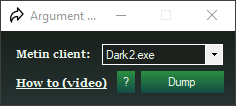
Argument dumper
Some servers only let their client start with a command-line argument, and STMod has to pass that same argument when it starts the client for you. Rather than hunting for it, start the game once normally and let STMod read it off the running process.
1. Start the game the usual way, through the server's own patcher.
2. Open **Plugins → Argument dumper**.
3. Pick the running game process in **Metin client**. The list only shows processes matching the current profile's client.
4. Press **Dump**.
If an argument is found, STMod offers to configure it for you — answering **Yes** fills in **Special arguments** on the [login window](/launcher/server-profiles.md#the-login-window), ticks the box and saves it to the profile. If the client doesn't use one, it tells you so.
**How to (video)** and the **`?`** button link to an explanation of what command-line arguments are.
### HWID Switcher
HWID Switcher
Changes the Windows identifiers a machine reports about itself. Some servers tie a ban to those identifiers rather than to the account.
* The checklist picks which identifiers to change: **Change PC name**, **Change Machine Guid**, **Change Product ID**, **Change Windows Edition**, **Change Machine Id**, **Change User Id**. **Settings: Check all** ticks or unticks them all at once.
* **Change HWID** — Backs up the current values, then applies the changes you ticked.
* **Restore HWID** — Puts back the values saved by the last **Change HWID**.
* **Logs** — Reports what was changed or restored, and anything that failed.
{% hint style="warning" %}
This writes to your Windows registry and affects your whole machine, not just Metin2. **Restore HWID** can only undo what the matching **Change HWID** backed up, so don't run it on a machine you can't afford to have identifiers changed on. If a restore fails, the backup is kept and nothing is deleted — the log says so.
{% endhint %}
{% hint style="info" %}
The HWID Switcher is a premium feature; the menu entry does nothing on a free account.
{% endhint %}
### Groq API key
Shows the status of the **OCR Groq captcha solver** — whether an API key is configured and whether the solver is running — and offers to open the key file so you can paste your own Groq API key in. The solver itself is the **OCR Groq captcha solver** checkbox on the launcher's main window.
{% hint style="warning" %}
Your Groq API key is your own account credential. Keep it to yourself — nobody from STMod will ever ask for it.
{% endhint %}
## Help
* **Get Runtimes** — Installs the Visual C++ runtimes STMod needs, if they're missing.
* **Changelog** — Opens the patch notes for the version you're running.
## Get premium
The rightmost menu entry opens [stmod.net pricing](https://stmod.net/#pricing). It's hidden on most paid plans.
{% hint style="info" %}
License keys are **not** redeemed in the launcher. Log into stmod.net and use the **Redeem License Key** section of the dashboard — see [How STMod works](/how-stmod-works.md#activating-your-license).
{% endhint %}